What Is a Direct Image URL and Why Does It End in .png?
Published November 4, 2026 · 5 min read
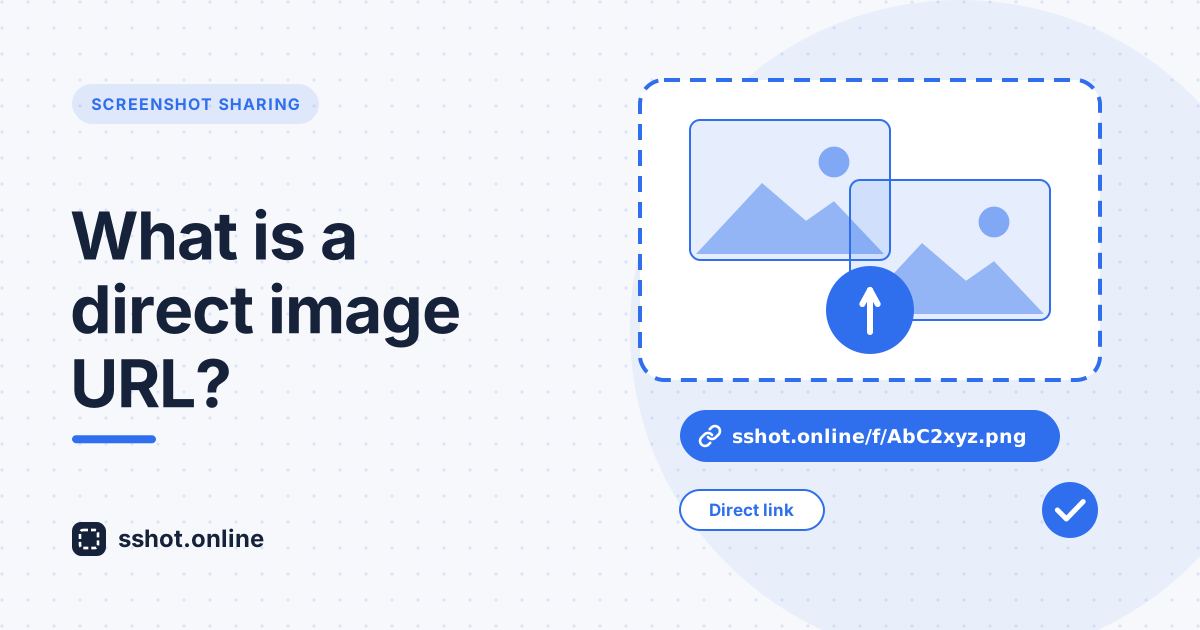
You take a screenshot, switch to your chat window, and the trouble begins. The file is too heavy, the app squashes the quality, or your teammate can't open the attachment on a phone. There is an easier way. A direct image URL turns your screenshot into a plain web address that opens the picture and nothing else. sshot.online creates one for you in about a second, completely free, and it never asks you to make an account.
What is a direct image URL?
A direct image URL is a web address that points straight to an image file. Open it and you see the
picture on its own, with no menus, no ads and no extra page wrapped around it. That's why these
links usually end in .png, .jpg, .gif or .webp.
The ending tells the browser what kind of file is coming.
A normal share page is made for people who want to look at a picture. A direct image URL is made for tools that need to load one. Forums, README files, help desks and chat apps all expect the raw image. If you want to know exactly when to use each type, this short guide on direct image link versus share link explains it clearly.
How sshot.online works
The whole process takes three simple steps:
- Add your screenshot. Drag it onto the page, click to browse your files, or paste straight from your clipboard with Ctrl+V (Cmd+V on a Mac).
- Get two links. The upload finishes almost at once and you receive a clean share page for people and a direct image URL for embedding.
- Paste it anywhere. Drop the link into an email, a ticket, a document or a chat. Anyone can open it without logging in.
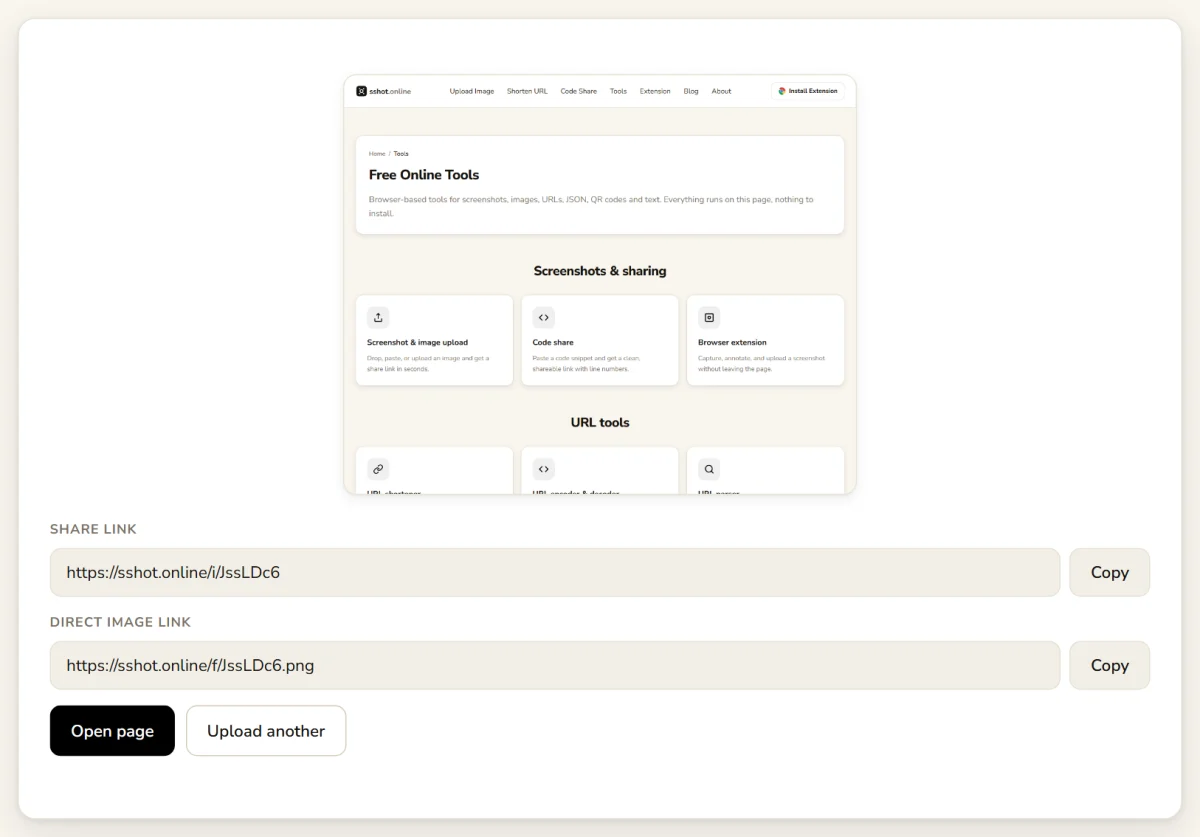
The tool accepts PNG, JPG, GIF and WebP files up to 3 MB, which is plenty for everyday screenshots.
Why people choose sshot.online
Plenty of image hosts make you sign up, sit through ads or dig around a cluttered dashboard. This one keeps things refreshingly simple.
- No signup, ever. Open the page and upload. No email, no password, no clutter.
- Free and unlimited. Upload as many screenshots as you need without paying anything.
- Private and fast. Uploads are anonymous and images load quickly thanks to smart caching.
- Links that last. Screenshots stay online and the links don't expire.
- Browser extension. The SSHOT Extension captures part of any tab, lets you add arrows or text, and uploads without leaving the page.
Where a direct image URL helps most
- Bug reports and QA. Drop the link into a ticket or pull request and your teammates see the error right away. Nobody has to download a file or log in to anything.
- Customer support. Show the fix instead of describing it. A link opens quickly on desktop and mobile, so customers can follow along easily.
- Documentation. Embed your image in Markdown with one short line:
. The picture loads straight from the link into your README, wiki or forum post. See how to embed a screenshot in Markdown for more. - Chat tools. Slack and Discord usually preview the image inside the conversation, which keeps threads tidy and easy to read. A reliable direct image URL means your picture shows up the way you planned. More in our guide to sharing screenshots in Slack and Discord.
Choose the right image format
Screenshots full of text, buttons and menus look sharpest as PNG. Photos shrink better as JPG. If you're not sure which one to pick, read this simple guide on PNG vs JPG for screenshots. Smaller files also upload faster, which helps when you're close to the 3 MB limit.
Keep your page addresses clean too
Good screenshots often live inside guides, help pages and blog posts, and those pages need tidy web addresses as well. The Bulk URL Slug Generator lets you process multiple titles at once, turning a whole list into clean, readable slugs you can copy or download as a CSV file. Pair neat slugs with a dependable direct image URL and your content looks professional from the address bar to the very last image.
Quick tips for better screenshot sharing
- Crop the image so it shows only what matters.
- Blur private details such as emails, names and tokens before you upload (here's how).
- Add a small arrow or a short note so readers know exactly where to look.
- Test the link in a private window to confirm it works for people who aren't signed in.
Conclusion
Sharing a screenshot should take seconds, not a pile of attachments and sign-in screens. With sshot.online you drop an image, copy a clean link and move on with your day. Whether you're filing a bug, helping a customer or writing documentation, a direct image URL gives you a fast, reliable and tidy way to show exactly what you mean. Try it on your next screenshot and see how much smoother sharing can feel.
Get a direct image URL now. It's free, with no signup.
Frequently asked questions
Is sshot.online really free?
Yes. Uploads and URL shortening are free and unlimited, and you never need a credit card.
Do I need an account to get a direct image URL?
No. Open the site, upload or paste your screenshot, and your links appear immediately.
Which file types can I upload?
You can upload PNG, JPG, GIF and WebP images up to 3 MB each.
Can I use it on my phone?
Yes. The website works in any mobile browser. The browser extension is for desktop only.
Will my links expire?
No. Screenshots stay online and links don't expire. You can request removal anytime through the contact page.
Related articles
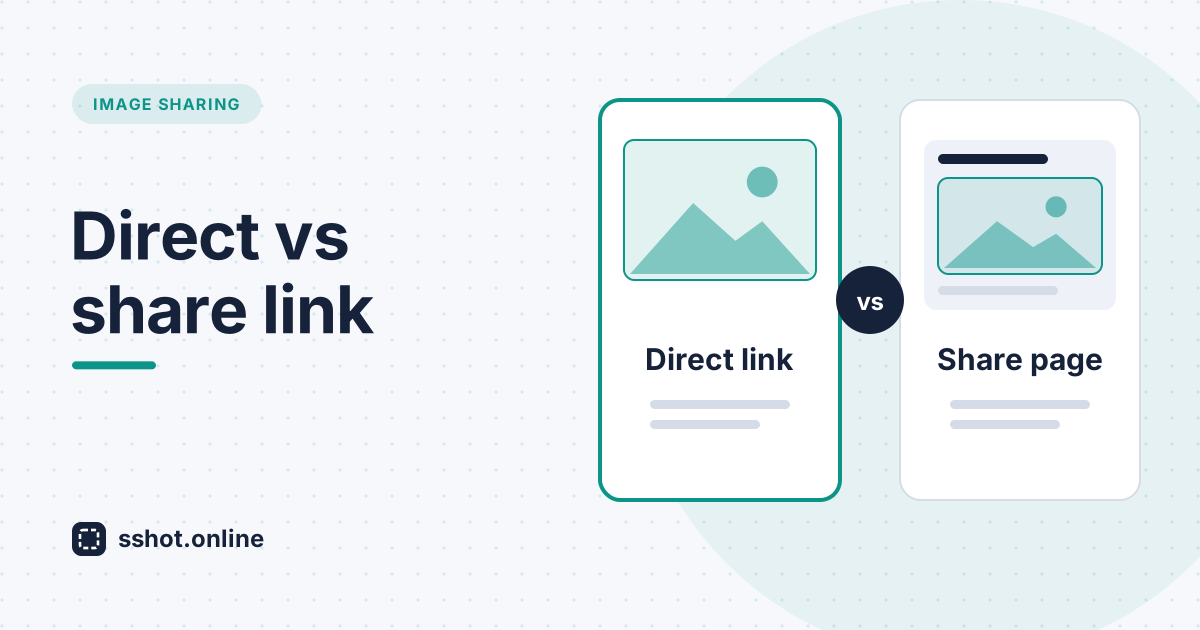
Direct Image Link vs. Share Link: Which One Should You Use?
Every sshot.online upload gives you two URLs. Here is exactly when to use the share link and when to use the direct image link.
Read More →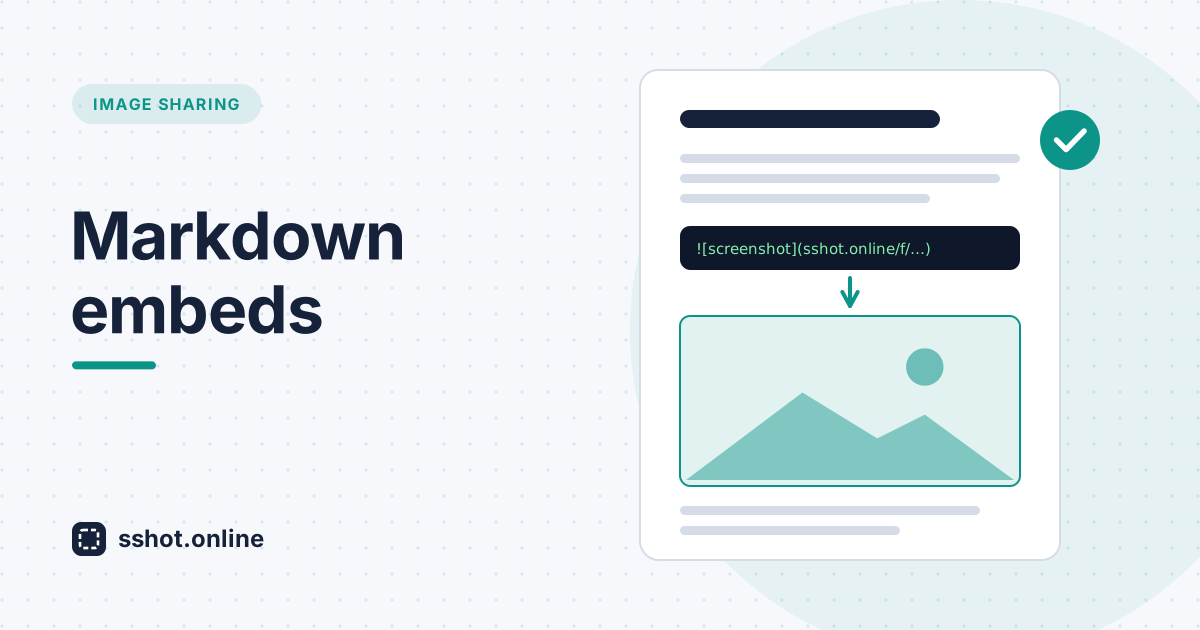
How to Embed a Screenshot in Markdown (README, GitHub, Docs)
Get a direct image link for any screenshot and embed it in Markdown for a README, GitHub issue, or wiki in one line.
Read More →
PNG vs JPG: Which Format Should You Use for Screenshots?
PNG or JPG for a screenshot? A simple rule based on what is in the image — text and UI vs photos — plus file-size tips. Free guide.
Read More →