Sharing Screenshots in Slack and Discord with Direct Image Links
Published November 4, 2026 · 5 min read

Team chat moves fast. A question appears, someone replies with a screenshot, and within minutes the conversation depends on that image. But chat apps handle uploaded images in their own ways: big files take a while to upload, previews get compressed or cropped, and older images vanish deep in the scroll.
Sharing screenshots through links is a cleaner path. This short guide explains how sharing screenshots in Slack and Discord works with links, when to use a direct image link, and how to keep your team's conversations easy to follow.
Why chat uploads often cause problems
- Uploads take time on slow connections, especially for large, high-resolution screenshots.
- Previews may be compressed, which can make small text in a screenshot hard to read.
- Files pile up in the workspace's shared storage over time.
- Attachments are stuck in the message. To use the same screenshot in a ticket or a document, someone has to download it and upload it again.
Share link or direct image link?
Every screenshot you upload to SSHOT Online gets two links. Both work in chat; they just look a little different:
- Share link (
sshot.online/i/…): opens a page showing the image, with download buttons. In chat it usually appears as a link card with a large preview. - Direct image link (
sshot.online/f/….png): points straight at the image file, so chat apps can show the picture itself. It's also the one to use in Markdown, wikis, and documentation.
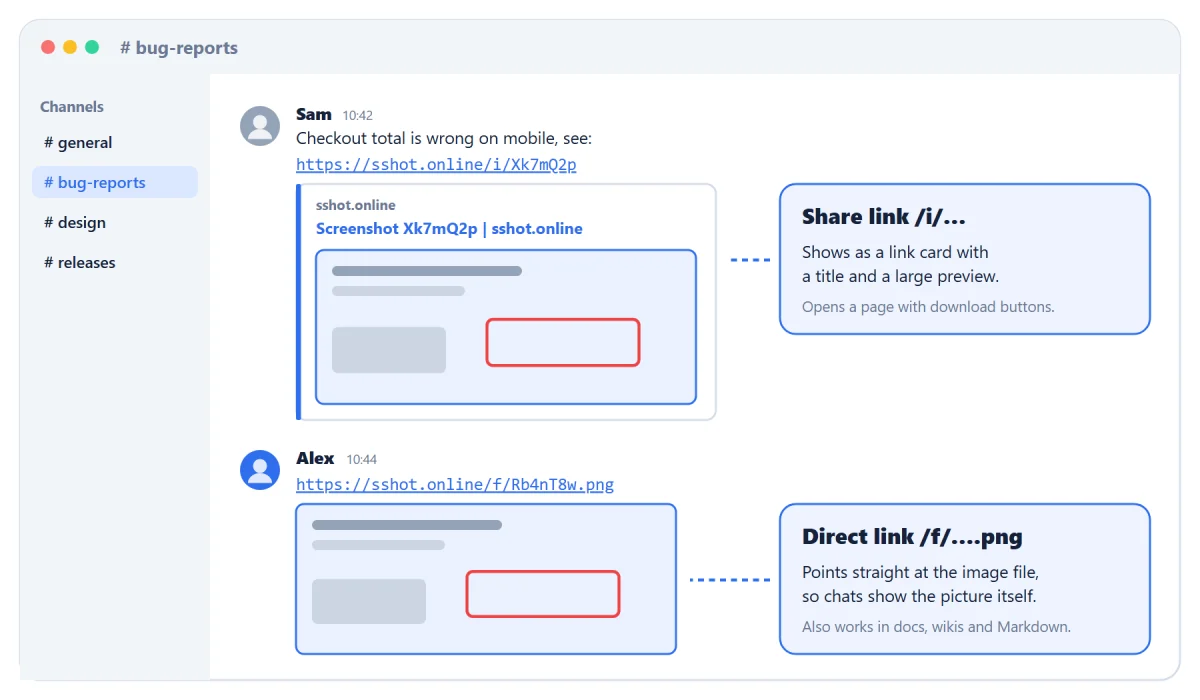
Either way, the message carries a short URL instead of a heavy file, and the same link can be reused in a ticket, an email, or a doc without re-uploading.
How to get the links
- Take your screenshot. On Windows, Win+Shift+S copies it to the clipboard.
- Open SSHOT Online and press Ctrl+V, or drag the file onto the page.
- Click Copy next to the share link or the direct image link.
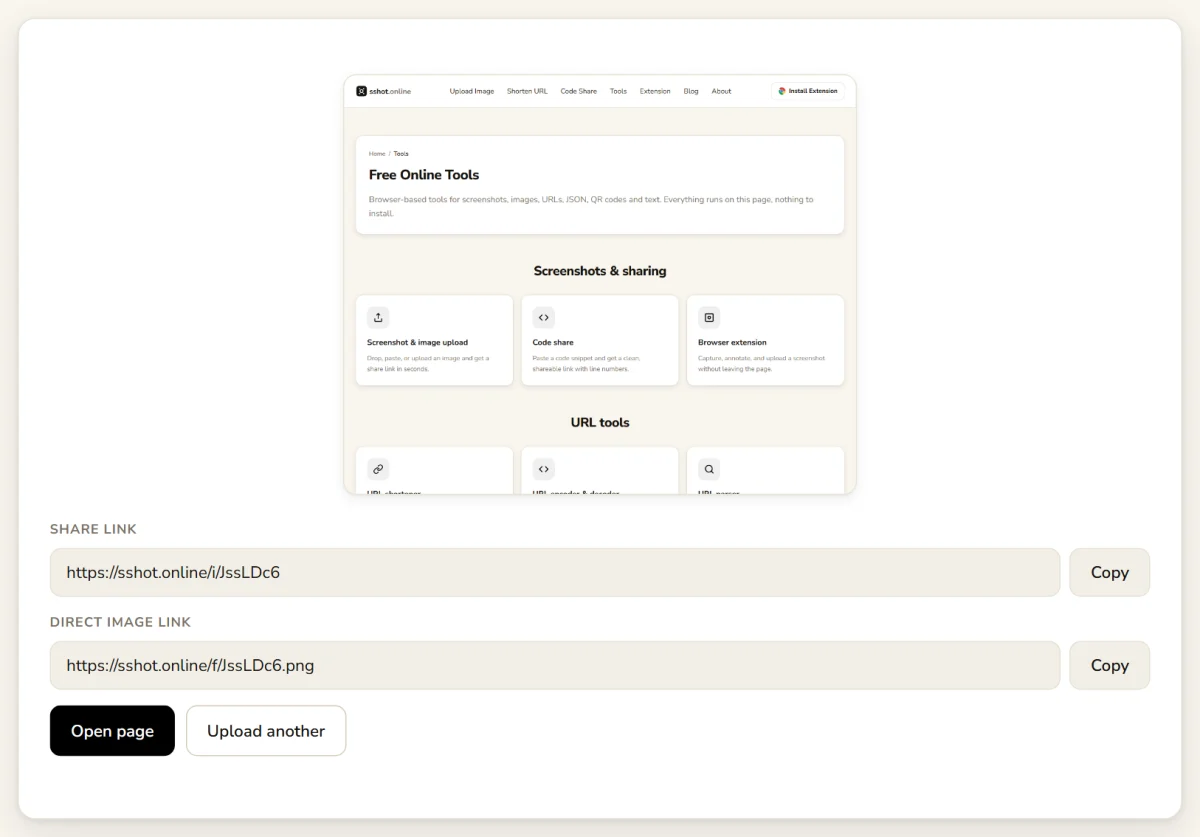
Working in the browser? The SSHOT Extension lets you capture part of a page, mark it up, and copies the link to your clipboard automatically.
Sharing screenshots in Slack
- Paste the link into the channel or thread where the issue is being discussed.
- Add a short note explaining what to look for, such as a highlighted error or a specific setting.
- Keep follow-up questions in a thread under the screenshot so the context isn't lost.
Slack normally shows a preview for links. If you don't see one, your workspace may have link previews turned off, or Slack may skip a link it has already previewed in the same conversation. The link still works when clicked.
Sharing screenshots in Discord
- Post the link in the relevant channel. A direct image link usually displays as the image itself.
- Mention the people who need to review it.
- If the discussion grows, pin the message or move it to a dedicated support or bug channel.
Discord communities often cover many topics, so a clear sentence next to the link helps members decide whether the image is relevant to them. Some servers turn off embeds in certain channels; the link still opens normally when clicked.
Tips for cleaner screenshot conversations
- Crop before you share. Remove unrelated windows and desktop clutter so the important detail stands out.
- Mark the problem. A box or arrow around the issue saves everyone from scanning the whole image.
- Describe the image. One sentence about what the screenshot shows saves readers time.
- Use threads or dedicated channels for long debugging or design discussions.
- New version, new link. An uploaded screenshot can't be replaced, so when you share an updated one, say it replaces the earlier link.
Conclusion
Sharing screenshots through links gives Slack and Discord teams a cleaner, faster way to discuss visual problems. Messages stay light, and the same image can be reused across tools without re-uploading. Capture, link, post, and describe: four steps that keep conversations focused and easy to follow. Try it with your next bug report or design question.
Start sharing screenshots with links. It's free, with no signup.
Frequently asked questions
Can I share a screenshot link directly in Slack?
Yes. Paste the link into a message or thread. Slack usually shows a preview so teammates can see the image without leaving the conversation, unless link previews are turned off in your workspace.
Does Discord show screenshot links as images?
Usually. A direct image link (ending in .png, .jpg, .gif or .webp) normally displays as the image, and a share link shows as an embed with a preview, unless embeds are turned off in that channel.
Do I need to upload the screenshot to Slack or Discord first?
No. Upload it once to sshot.online and paste the link. You can reuse the same link in Slack, Discord, email, tickets, and documents.
Are screenshot links private?
Links are random and unlisted, and there's no public gallery, but anyone who has a link can view the image. Share links only with people who need them, and crop out passwords, personal data, and confidential information before uploading.
What if a screenshot link doesn't show a preview?
Check that the link opens in a browser. The chat app or channel may have previews turned off. Try the direct image link, or post the link with a short description so teammates can still open it.
Related articles

How to Share a Screenshot in Slack (Without Clogging the Channel)
Share a screenshot in Slack as a tidy link instead of a bulky inline upload — no storage bloat, works in threads, DMs, and Connect.
Read More →
How to Share a Screenshot on Discord Without Losing Quality
Drag-and-drop fails on big images and mobile. Use a link instead to share a crisp screenshot on Discord every time.
Read More →
Direct Image Link vs. Share Link: Which One Should You Use?
Every sshot.online upload gives you two URLs. Here is exactly when to use the share link and when to use the direct image link.
Read More →