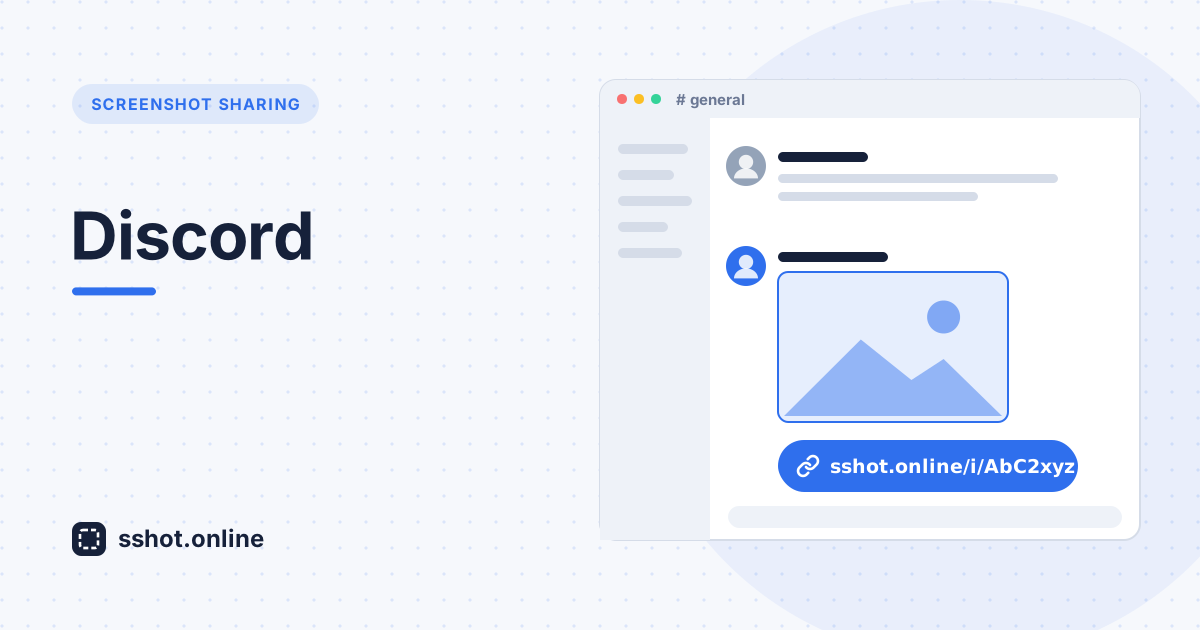
Discord lets you drag an image straight into a channel, but that breaks down in a few common cases: the file is over the upload limit, you are on a locked-down work network, or you are on mobile and the image is buried in your camera roll. Sharing a link to the screenshot avoids all of that.
Turn the screenshot into a link
- Open sshot.online and paste or drop your screenshot.
- Copy the share link it generates.
- Paste the link into any Discord channel or DM.
Discord automatically unfurls the link into an inline preview, so people see the image right in the chat without downloading anything.
Why a link beats a direct upload sometimes
- No size cap surprises — you are not fighting Discord's per-file limit on free servers.
- Works on any device — the same link opens on desktop, mobile, and in the browser.
- Easy to reuse — paste the same link in multiple channels, a ticket, or a doc.
For repeated captures, the browser extension grabs a region of any tab and gives you the link in one click — handy when you are reporting a bug in a web app.