Install the SSHOT Extension on Chrome, Edge, Brave and Opera in Minutes
Published November 4, 2026 · 5 min read
Capturing screenshots in your browser should feel effortless. Yet many people still bounce between tools, save files to folders, and attach images to messages one by one. The SSHOT Extension changes that routine: it sits right where you work, so a screenshot is one shortcut away from becoming a shareable link.
This guide walks you through installing the SSHOT Extension on Chrome, Edge, Brave, and Opera. All four browsers are built on Chromium, so they install the same extension from the Chrome Web Store, and setup takes just a few minutes.
Why install the SSHOT Extension
The extension keeps your screenshot tool close at hand. There's no separate app to open and no saved files to hunt for. When you spot something worth sharing on a web page, a dashboard, or a web app, you select it, mark it up, and get a link ready to paste.
- Select any area of the page and capture just that part.
- Annotate with a pen, lines, arrows, rectangles, a highlighter, and text.
- Upload in one click. The share link is copied to your clipboard automatically.
- Or keep it local: copy the image, save it, print it, or search it with Google.
It's most useful when you're moving fast: a support agent showing a customer a fix, a developer documenting a bug, or a designer collecting feedback without leaving the tab.
Before you begin
- Update your browser. Extensions run most reliably on current versions.
- No account needed. The extension is free, and there's nothing to sign up for or log in to, before or after installing.
How to install on Chrome
- Open the SSHOT Extension on the Chrome Web Store.
- Click Add to Chrome.
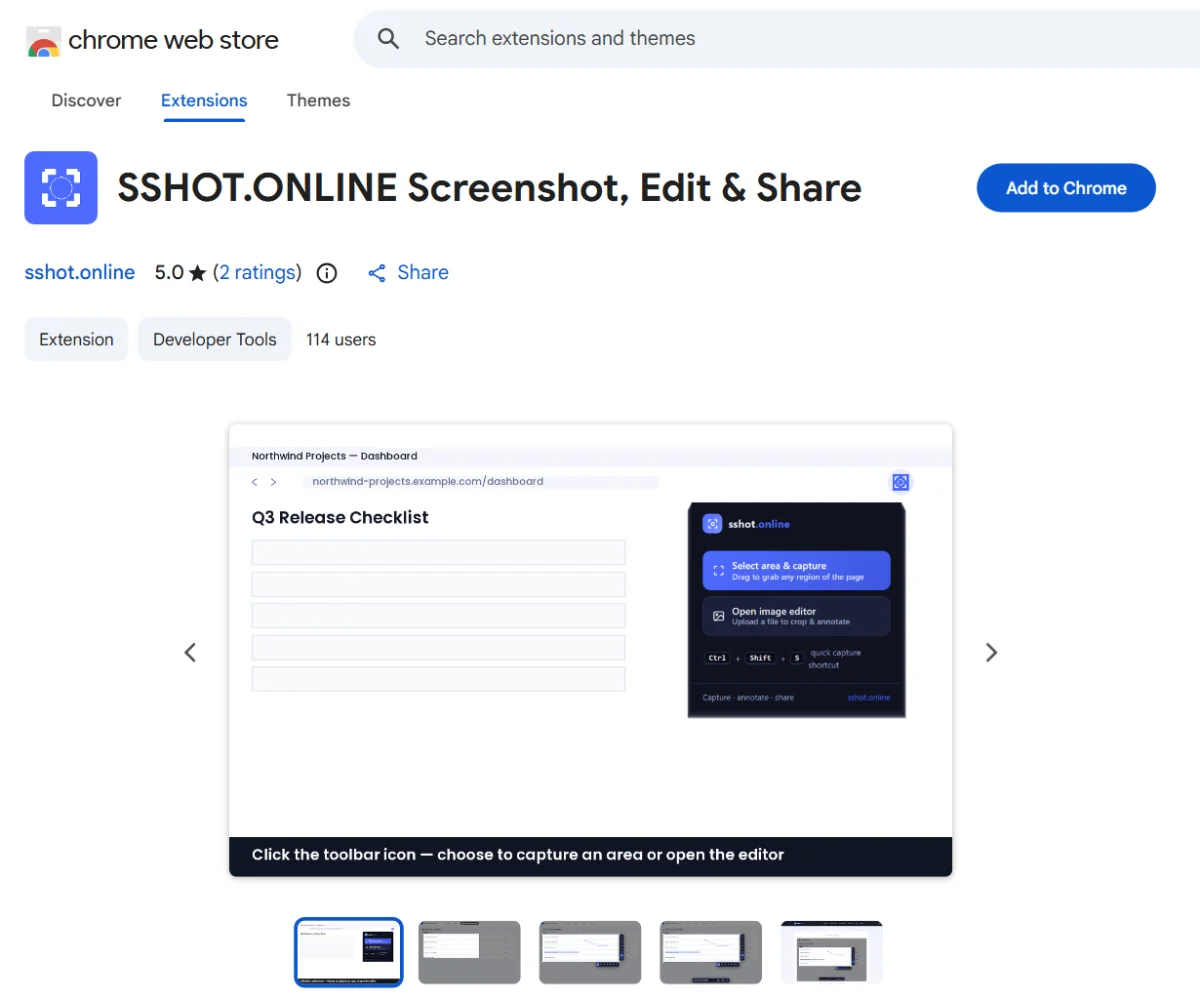
- Review the permissions and click Add extension.
- Click the puzzle-piece icon in the toolbar and click the pin next to sshot.online so its icon stays visible.
How to install on Edge
Microsoft Edge can install extensions straight from the Chrome Web Store once you allow it.
- Open the SSHOT Extension listing in Edge.
- If a banner says you can add extensions from the Chrome Web Store, click Allow extensions from other stores, then confirm with Allow.
- Click Add to Chrome (it works in Edge too), then Add extension.
- Click the puzzle-piece Extensions icon and choose Show in toolbar for sshot.online.
Edge tip: Edge already uses Ctrl+Shift+S for
its own Web Capture tool. If the shortcut opens Edge's tool instead, go to
edge://extensions/shortcuts and give sshot.online a different shortcut, such as
Alt+Shift+S.
How to install on Brave
Brave supports the Chrome Web Store out of the box.
- Open the SSHOT Extension listing in Brave.
- Click Add to Brave, then Add extension.
- Click the puzzle-piece icon and pin sshot.online.
How to install on Opera
Opera needs one extra step: a free helper from Opera that lets it install Chrome Web Store extensions.
- In Opera, install Install Chrome Extensions from the Opera add-ons site.
- Open the SSHOT Extension listing.
- Click Add to Opera and confirm. Opera may ask you to confirm once more on its extensions page.
- Click the cube-shaped Extensions icon in the toolbar and pin sshot.online.
Your first screenshot after installing
- Open any web page.
- Press Ctrl+Shift+S, or click the sshot.online icon and choose
Select area & capture. The page dims.
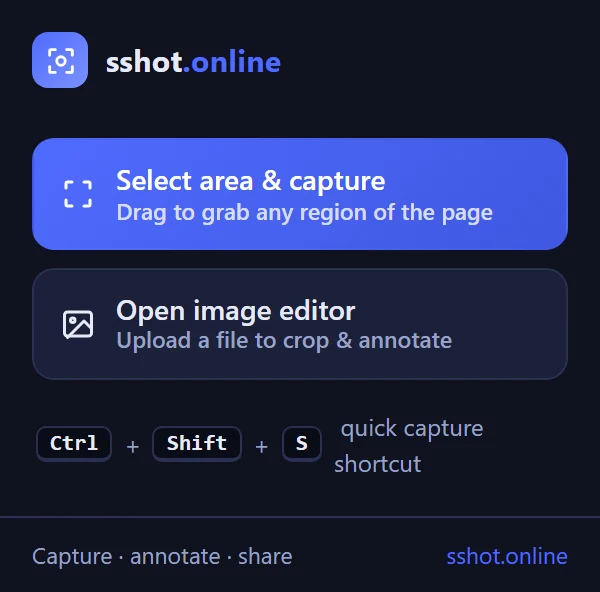
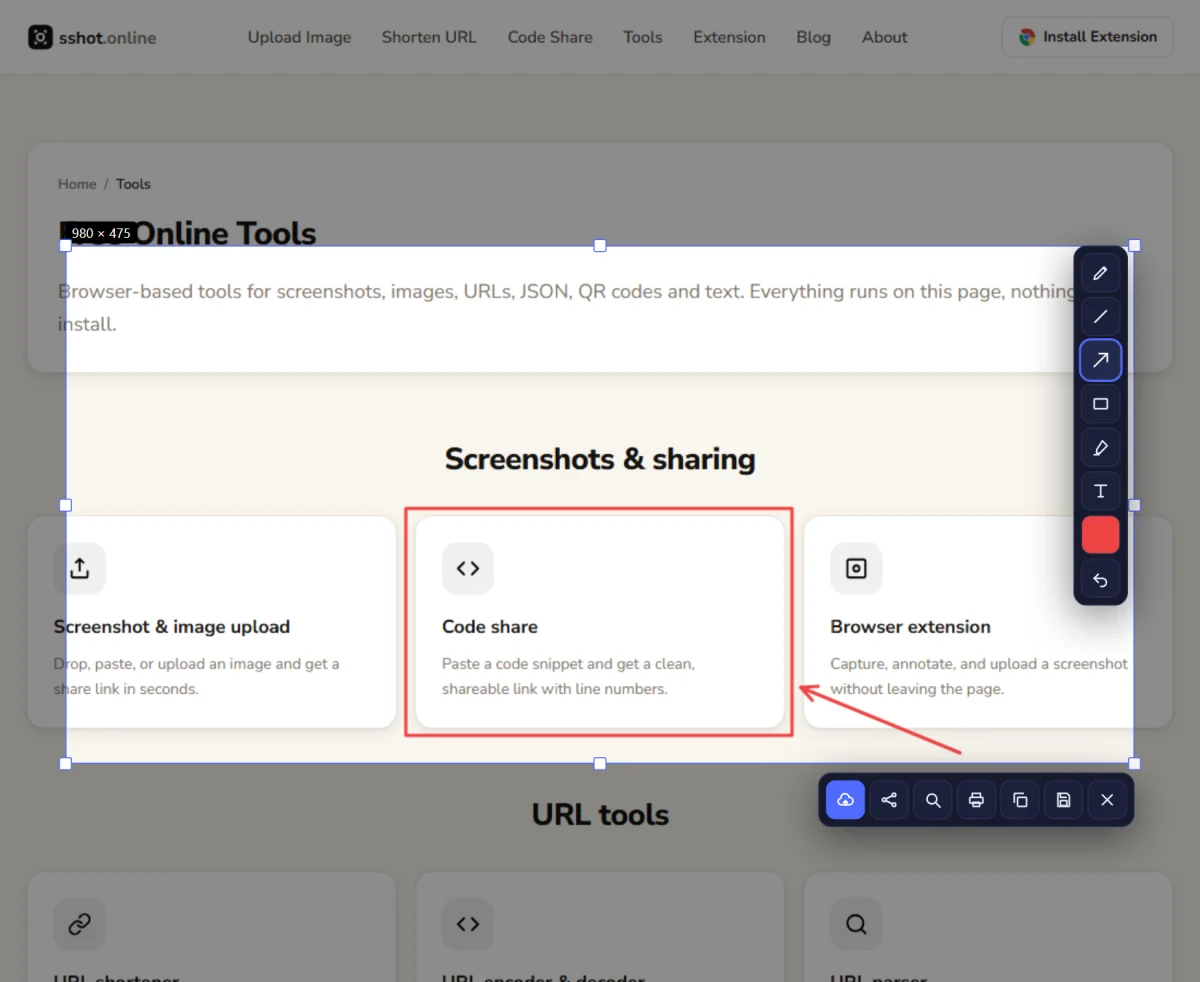
The menu that opens when you click the extension icon. - Drag to select the area you want. Adjust it with the handles if needed.
- Optionally mark it up with the tools on the right: pen, line, arrow, rectangle, highlighter, and text, with a color picker and undo.
- Click the upload button at the bottom. The share link is copied to your clipboard, ready to paste into chat, email, or a document.
Do one test capture on a simple page and open the link in a private window to confirm it works before relying on it for important work.
The extension menu also has Open image editor, where you can load an existing image file to crop and annotate it. It's also available when you right-click on a page.
Troubleshooting common install issues
- The icon isn't in the toolbar. Open the extensions menu (puzzle-piece or cube icon) and pin it again.
- The shortcut does nothing. Another app or the browser may be using
Ctrl+Shift+S. Set a new one on your browser's extension
shortcuts page, such as
chrome://extensions/shortcuts. - It won't capture this page. Browsers block extensions on their own internal
pages, such as
chrome://settings pages and the Web Store. Try a normal website. For anything outside the browser, take a system screenshot and paste it on sshot.online. - The extension doesn't appear after installing. Restart the browser and check that it's switched on in your extensions page.
Conclusion
Installing the SSHOT Extension takes only a few minutes on Chrome, Edge, Brave, or Opera. Once it's in place, screenshots become a quick step in your normal browsing: capture, annotate, and share the link. Install it, pin the icon, run one test capture, and start using it for your everyday visual sharing.
Add the SSHOT Extension for free
Frequently asked questions
Is the SSHOT Extension free?
Yes. The extension is free to install and use, and it doesn't need an account.
Does the SSHOT Extension work on Chrome, Edge, Brave, and Opera?
Yes. All four browsers are built on Chromium and install the same extension from the Chrome Web Store. Edge asks you to allow extensions from other stores, and Opera needs its free Install Chrome Extensions add-on first.
Do I need to restart my browser after installing?
Usually not. If the icon doesn't appear or the shortcut doesn't respond, a restart often fixes it.
Can I use the extension on more than one computer?
Yes. Install it in each browser you use. If your browser syncs extensions with your browser account, it may install automatically on your other devices.
How do I remove the extension?
Right-click the sshot.online icon and choose Remove, or open your browser's extensions page and remove it there. Links you already created keep working.
Related articles
How to Use Every Free Tool on sshot.online: Complete Step-by-Step Guide
A screenshot-by-screenshot walkthrough of every free tool: image upload, URL shortener, code share, the browser extension, QR codes, JSON, slugs, and more.
Read More →
How to Annotate a Screenshot Before Sharing It (Arrows, Highlights, Text)
Add arrows, highlights, and text to a screenshot before you share it, using the free sshot.online browser extension.
Read More →
How to Convert Screenshot to Link in One Second
Paste a screenshot and get a shareable link in about a second, on the website or with the browser extension, and why that speed changes how teams share.
Read More →