How to Use Every Free Tool on sshot.online: Complete Step-by-Step Guide
Published October 17, 2026 · 10 min read
sshot.online is a set of free tools for sharing screenshots and working with links, code, and text. Every tool runs in your browser, and none of them need an account. This guide walks through each one step by step, with screenshots of exactly what you'll see.
Contents
- Screenshot & image upload
- URL shortener (with custom links, QR codes and click stats)
- Code share
- Browser extension
- URL encoder & decoder
- URL parser
- URL slug generator (single and bulk)
- Text case converter
- JSON formatter & validator
- QR code generator
1. Screenshot & image upload
Use it to: turn any screenshot or image into a link you can paste into chat, email, a ticket, or a document. It's on the home page.
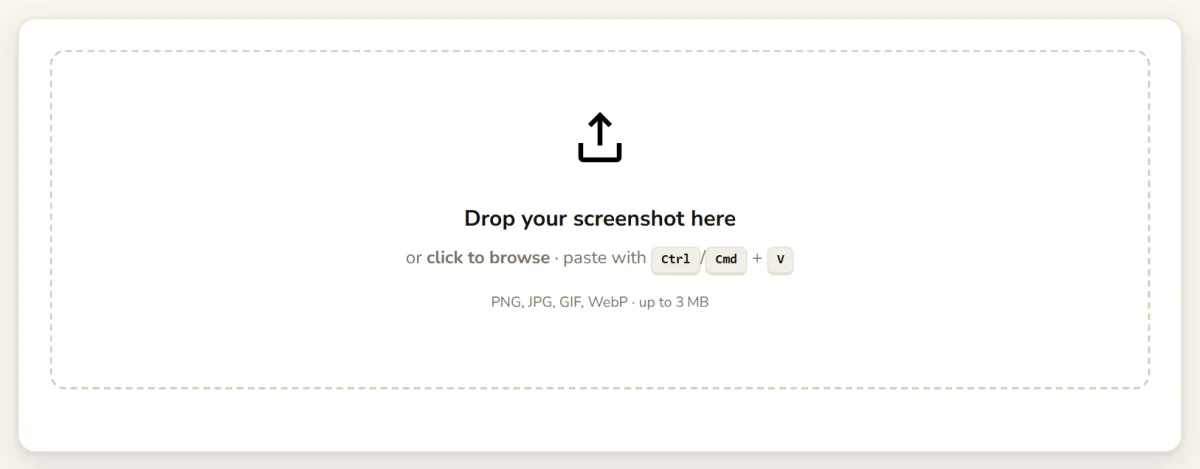
- Take a screenshot as usual (for example Win+Shift+S on Windows or Cmd+Ctrl+Shift+4 on a Mac, which copy it to your clipboard).
- On the home page, press Ctrl+V (Cmd+V on a Mac). You can also drag a file onto the box or click it to browse.
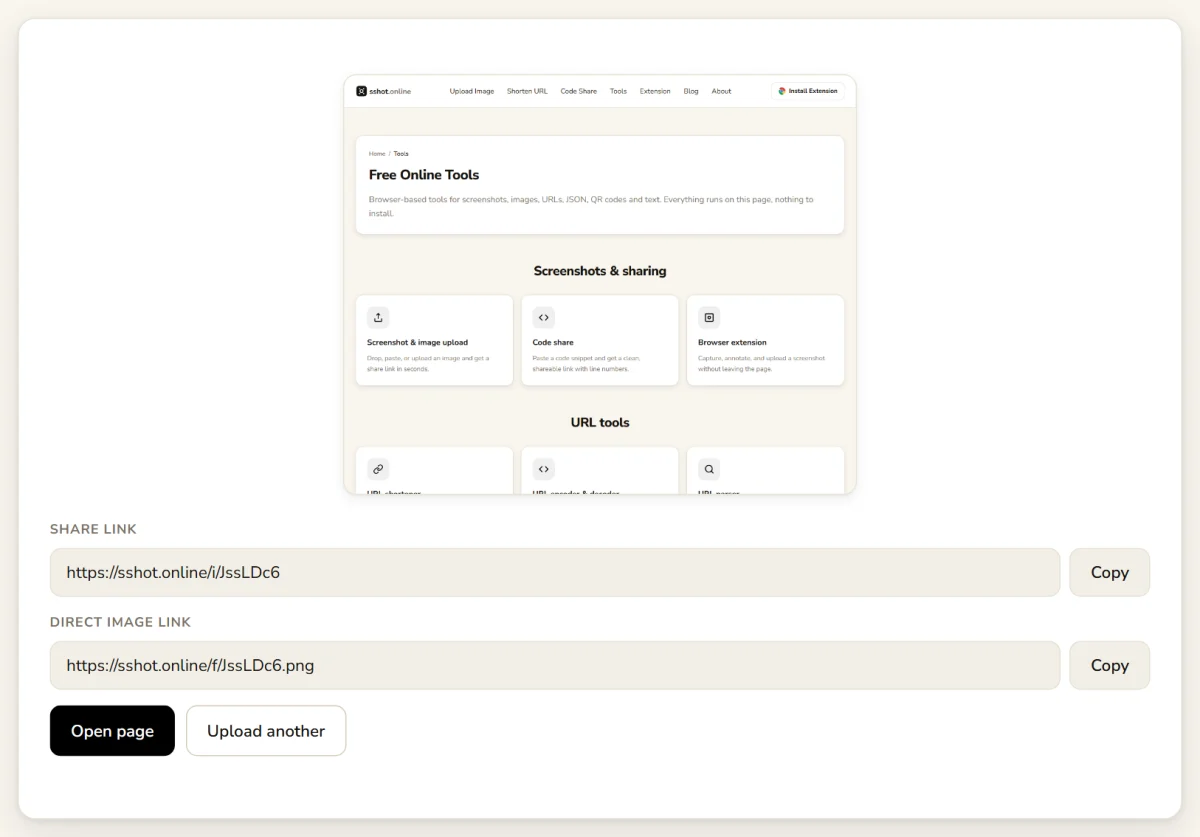
- About a second later you get a preview and two links:
- Share link (
/i/…): opens a page showing the image. Best for chat, email and tickets. - Direct image link (
/f/….png): points straight at the file. Use it to embed the image in Markdown, a README, a wiki, or a forum post.
- Share link (
- Click Copy next to the link you want and paste it anywhere.
Tip: anyone with the link can view the image, so crop out passwords, customer details, and other sensitive information before uploading.
2. URL shortener
Use it to: turn a long, messy URL into a short link, optionally with your own ending, a password, an expiry date, and a QR code. Open the URL shortener.
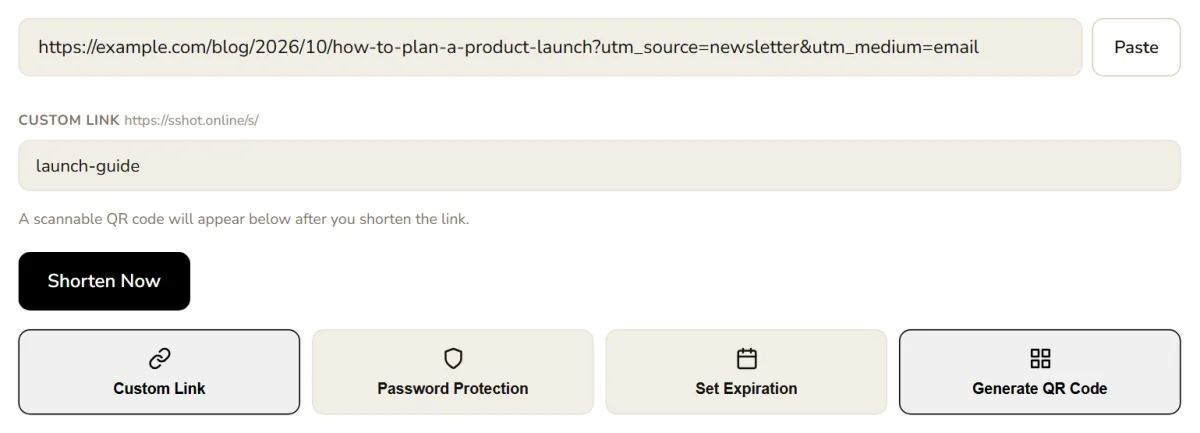
- Paste your long URL into the box (or click Paste).
- Optionally turn on extra options with the buttons below:
- Custom Link: choose your own ending, 3 to 32 letters, numbers, hyphens or
underscores (for example
/s/launch-guide). - Password Protection: visitors must enter the password to continue.
- Set Expiration: the link stops working after 1 hour, 1 day, 7 days or 30 days. By default links never expire.
- Generate QR Code: shows a scannable code with your result.
- Custom Link: choose your own ending, 3 to 32 letters, numbers, hyphens or
underscores (for example
- Click Shorten Now.
- Copy your short link. You can also show and download its QR code.
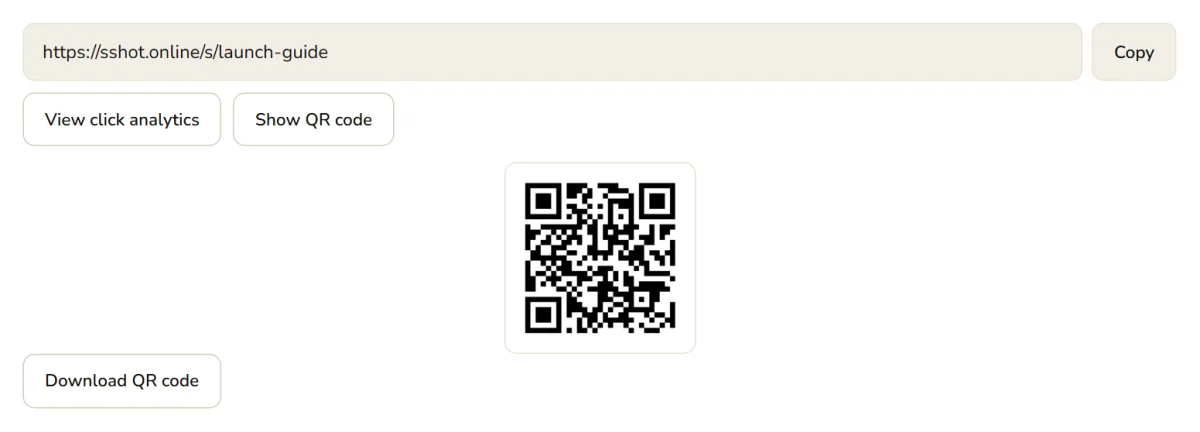
- Click View click analytics to open the link's private stats page: total clicks, when it was created, whether it expires or has a password, a 14-day click chart, and the QR code.
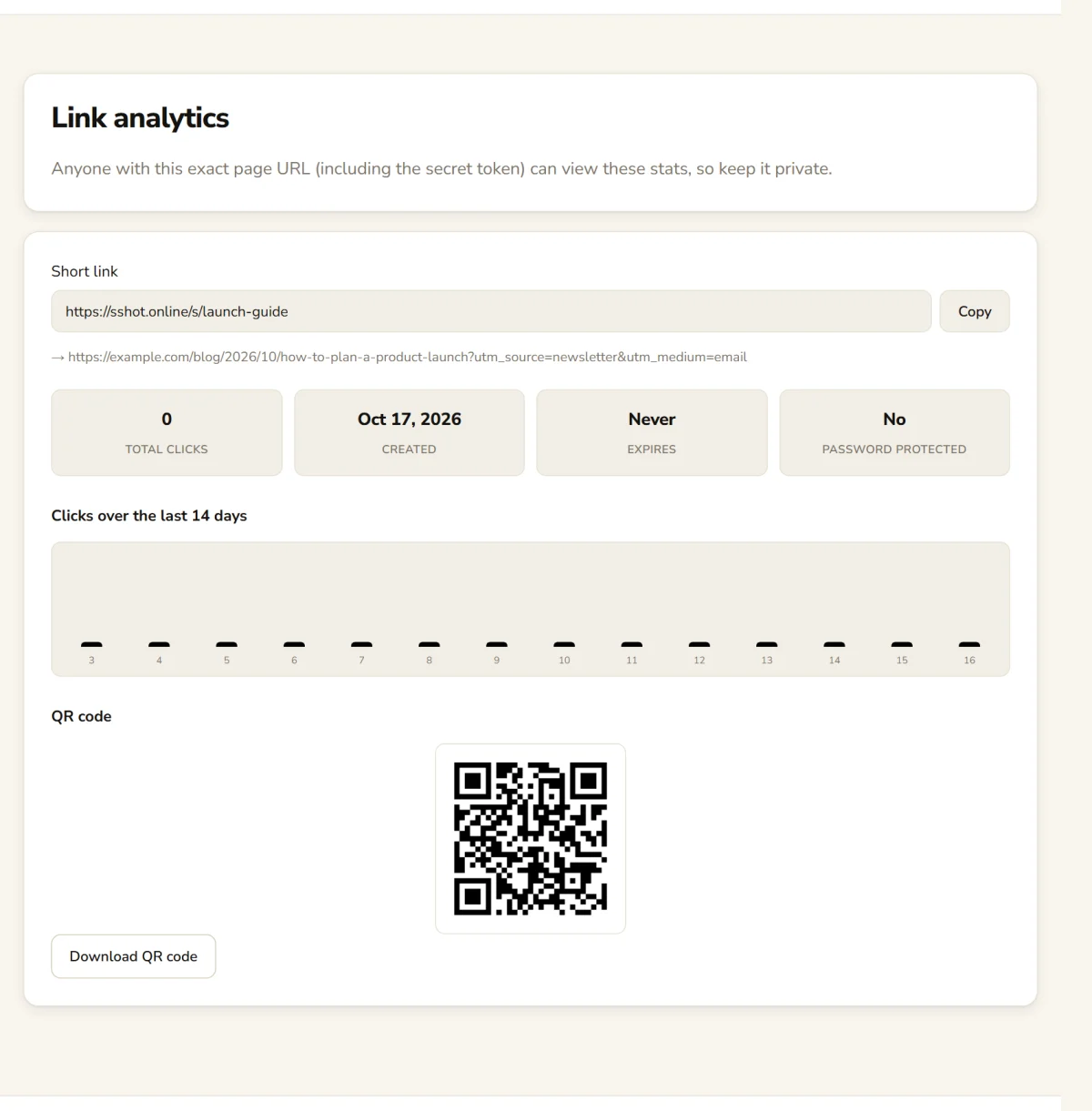
Tip: bookmark the analytics page. There's no account, so that link is the only way back to your stats, and anyone who has it can see them.
3. Code share
Use it to: share a code snippet, log, config file or stack trace as a clean, line-numbered link instead of pasting it into chat. Open Code Share.
- Optionally give the snippet a title.
- Pick the language (Python, JavaScript, SQL, YAML, Bash, JSON and more, or plain text).
- Paste your code (up to 512 KB) and click Create share link.
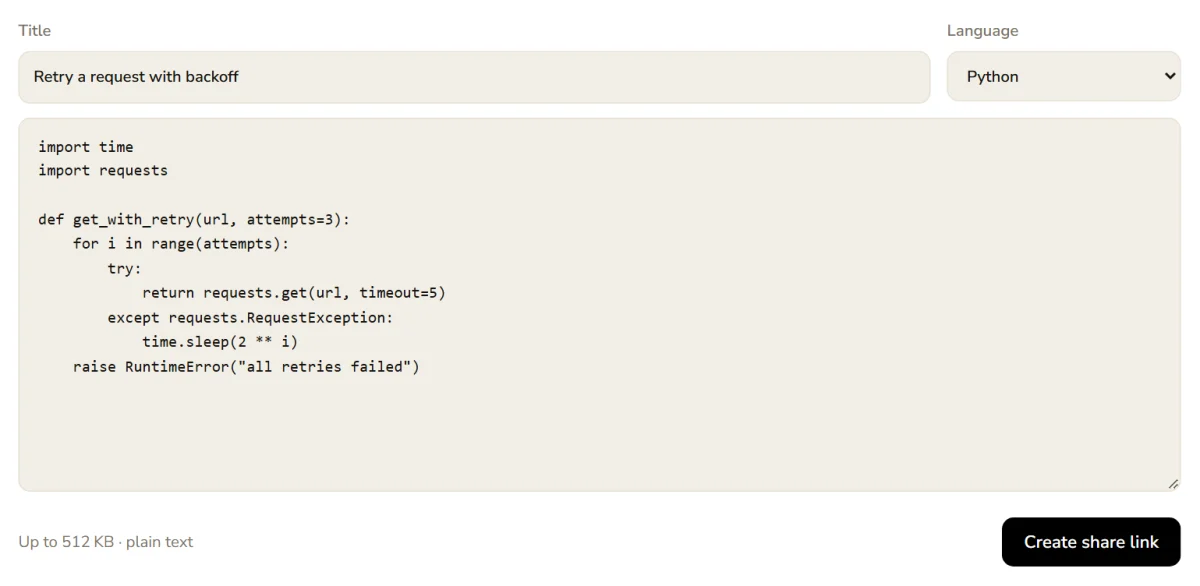
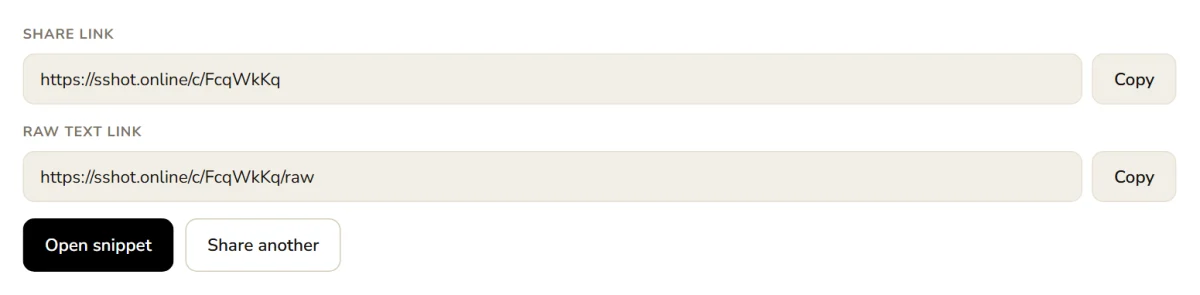
- Copy the share link (a formatted, line-numbered page) or the
raw text link (plain text, handy for
curlor scripts).
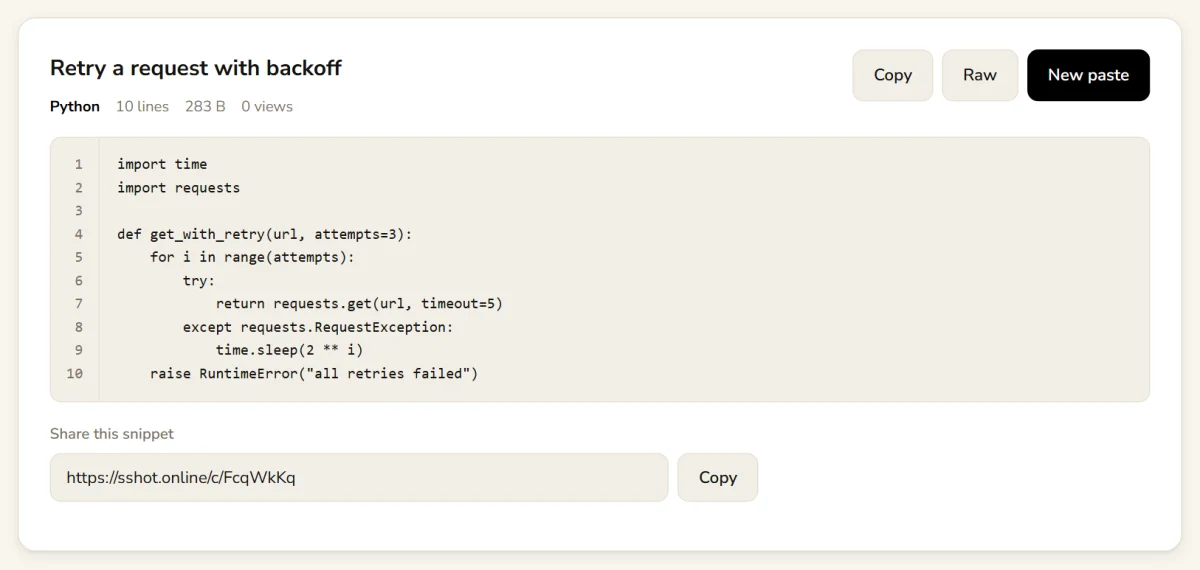
Here's what people see when they open the share link:
Tip: remove API keys, passwords, and tokens before sharing. Replace them with
placeholders like YOUR_API_KEY.
4. Browser extension
Use it to: capture part of any web page, annotate it, and get a link in one step, without leaving the tab. It works in Chrome, Edge, Brave and Opera.
- Install it from the Chrome Web Store and pin it to your toolbar. See the extension page for details.
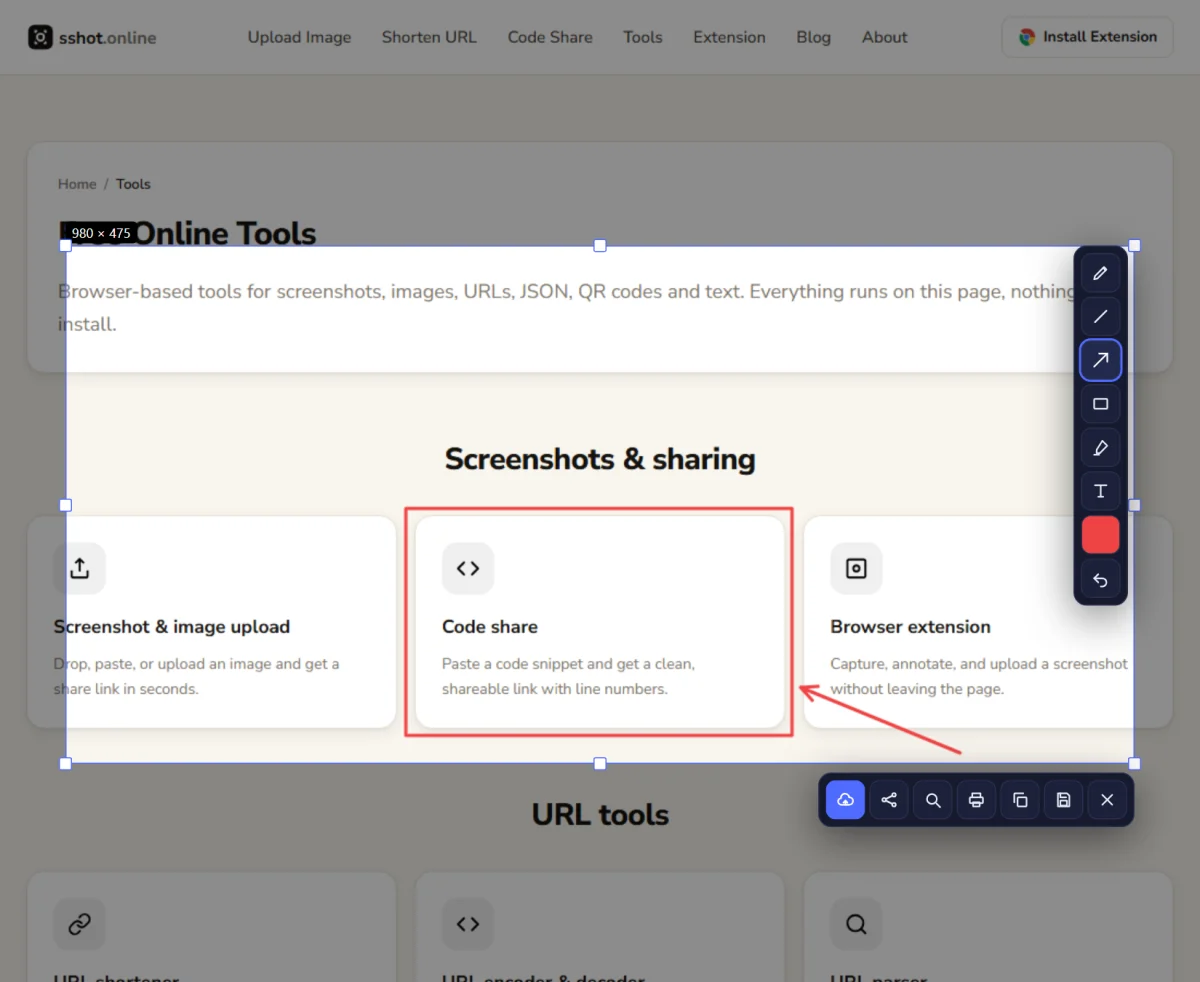
- On any page, press Ctrl+Shift+S or click the extension icon. The page dims.
- Drag to select the area you want. You can move or resize the selection with its handles.
- Annotate with the toolbar on the right: pen, line, arrow, rectangle, highlighter and text, plus a color picker and undo.
- Click the upload button (the first one in the bottom toolbar). The link is copied to your clipboard automatically. The other buttons let you share, search the image with Google, print, copy the image, save it, or close.
Tip: the extension can't capture browser-internal pages such as
chrome:// pages or the Web Store. For anything outside the browser, use your
system screenshot tool and paste it on the home page.
5. URL encoder & decoder
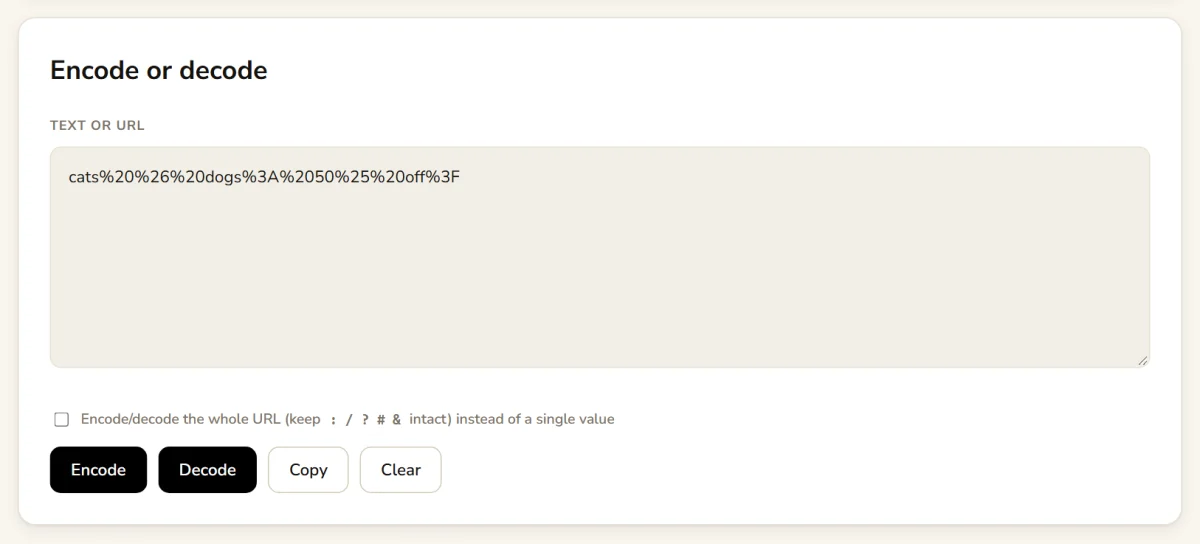
Use it to: make text safe to put in a URL (spaces, &,
? and other special characters), or turn an encoded value back into readable text.
Open the URL encoder & decoder.
- Paste your text or URL into the box.
- Click Encode or Decode. The result replaces the text in the box.
- Turn on Encode/decode the whole URL if you're converting a full address and
want to keep characters like
:,/,?and&intact. Leave it off for a single value, such as a search term. - Click Copy.
6. URL parser
Use it to: see what a long URL is made of, check tracking parameters, or debug a redirect. Open the URL parser.
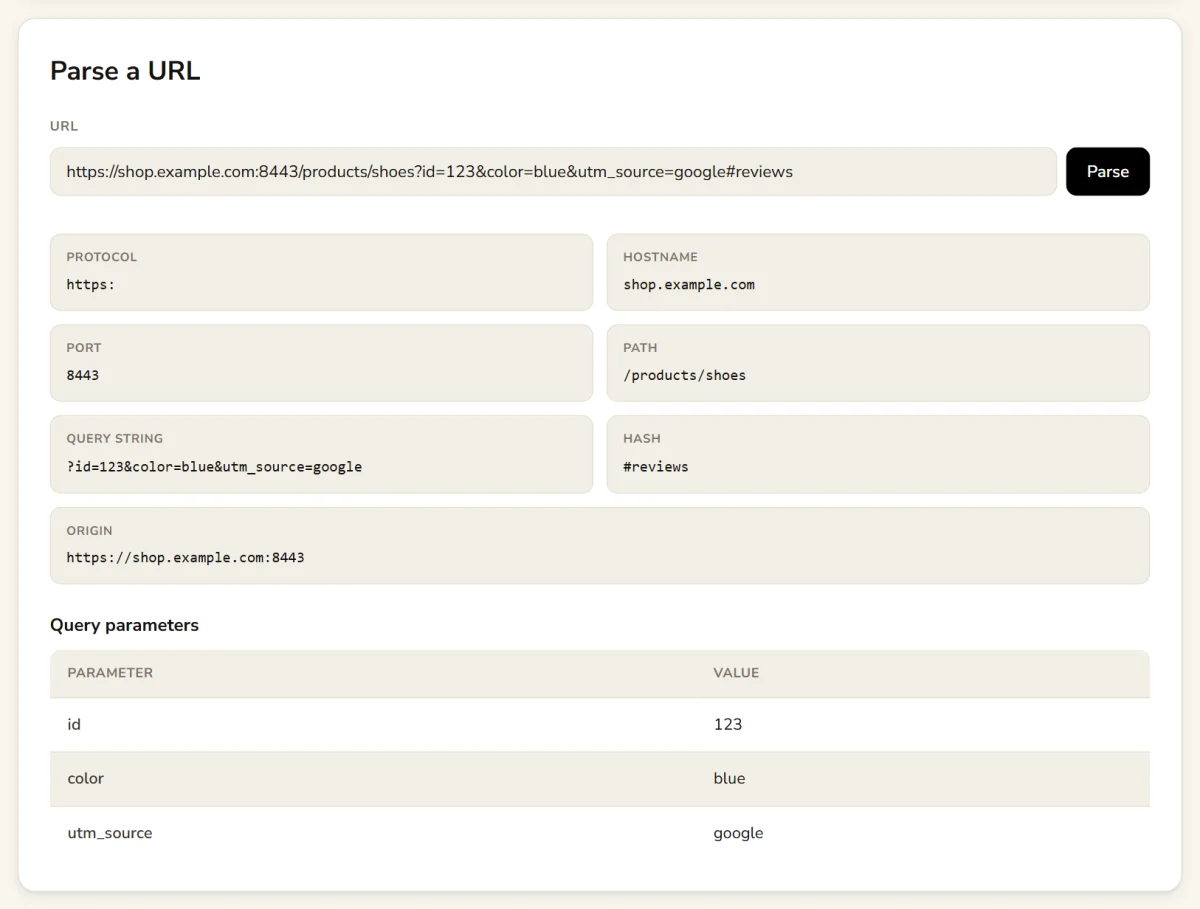
- Paste a full URL and click Parse.
- Read the breakdown: protocol, hostname, port, path, query string, hash and origin.
- Every query parameter is listed in its own row, so it's easy to spot values like
utm_source.
7. URL slug generator
Use it to: turn a page title into a clean, lowercase, hyphen-separated URL slug. Open the URL slug generator.
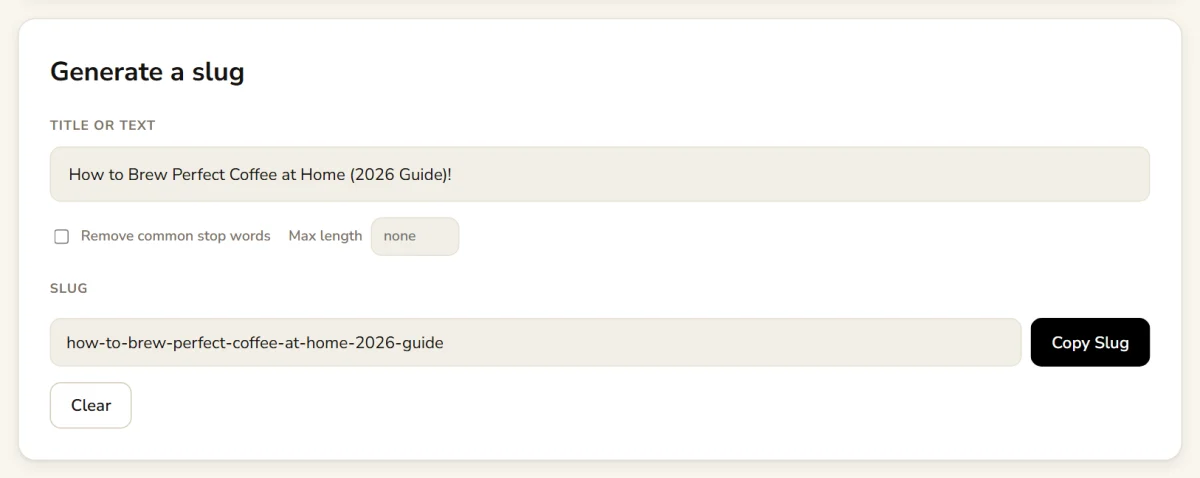
- Type or paste a title. The slug updates as you type: lowercase, spaces become hyphens, accents are simplified, and punctuation is removed.
- Optionally tick Remove common stop words (a, the, and, of…) or set a Max length.
- Click Copy Slug.
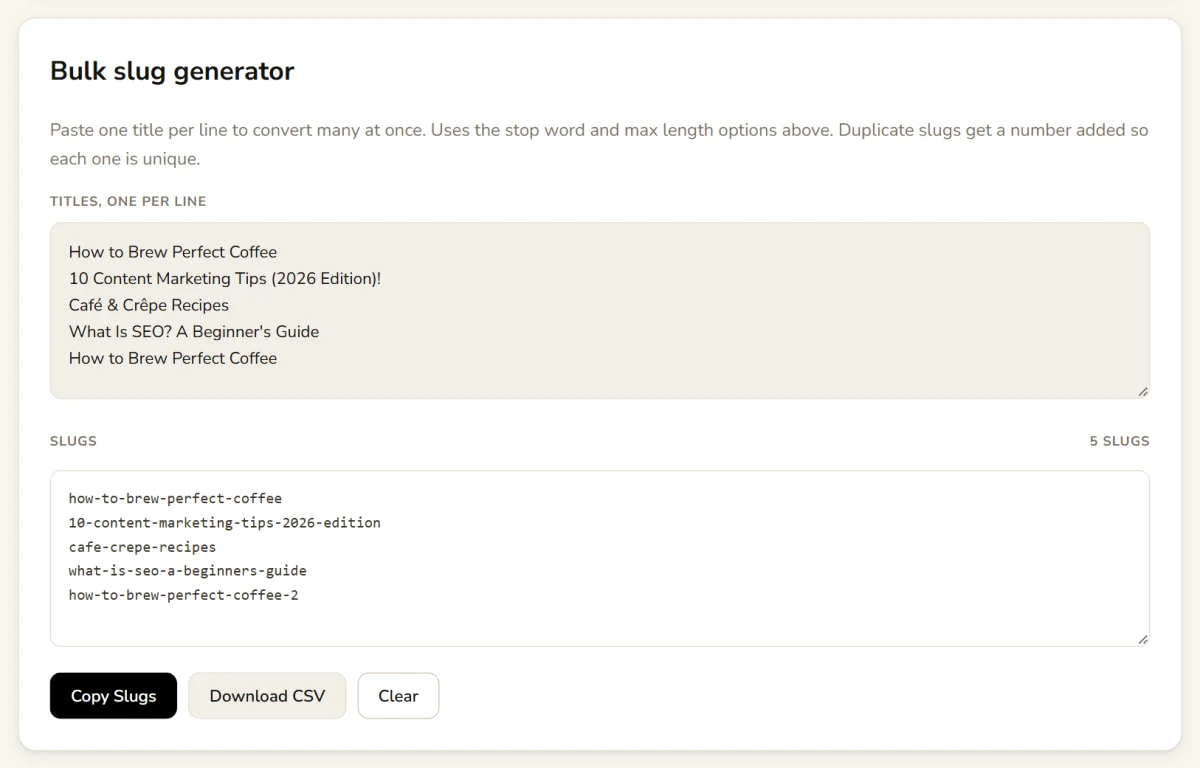
Many titles at once? Scroll to the Bulk slug generator, paste
one title per line, and get one slug per line. Duplicate slugs get -2,
-3 added so each one is unique. Copy them all, or click Download
CSV for a spreadsheet of titles and slugs.
8. Text case converter
Use it to: fix text typed in the wrong case or format headings consistently. Open the text case converter.
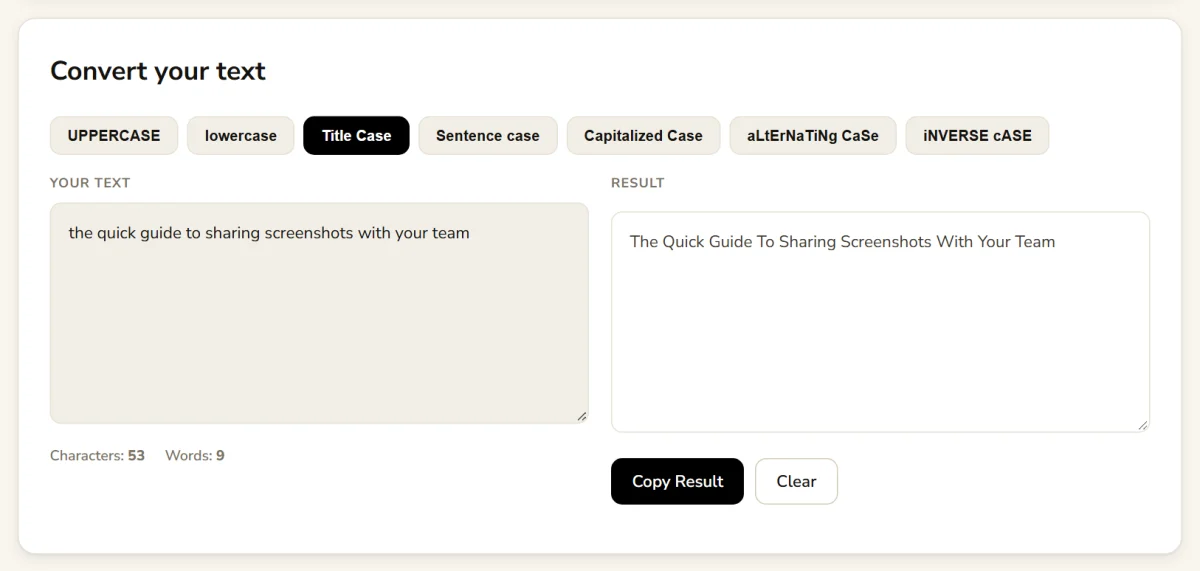
- Paste your text into Your text. Character and word counts appear below it.
- Click a case: UPPERCASE, lowercase, Title Case, Sentence case, Capitalized Case, aLtErNaTiNg CaSe or iNVERSE cASE.
- Click Copy Result.
9. JSON formatter & validator
Use it to: make minified JSON readable, find syntax errors, or shrink JSON back down. Open the JSON formatter. Your JSON is processed in your browser and never uploaded.
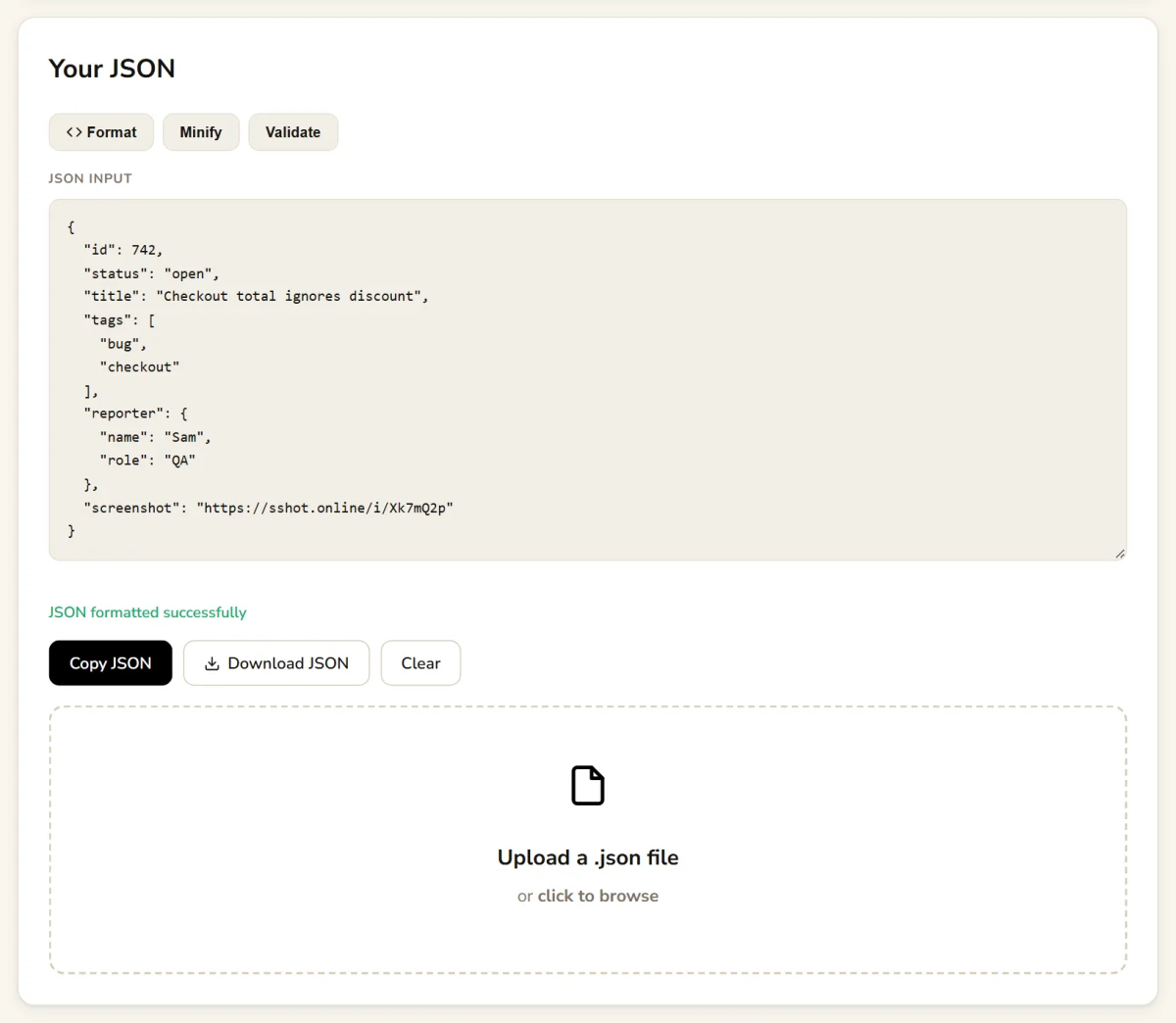
- Paste JSON into the box, or upload a
.jsonfile with the box below it. - Click Format to indent it, Minify to compress it onto one line, or Validate to check it. If there's a syntax error, a message tells you what's wrong.
- Click Copy JSON or Download JSON.
10. QR code generator
Use it to: create a QR code for posters, menus, slides, packaging, or business cards. Open the QR code generator.
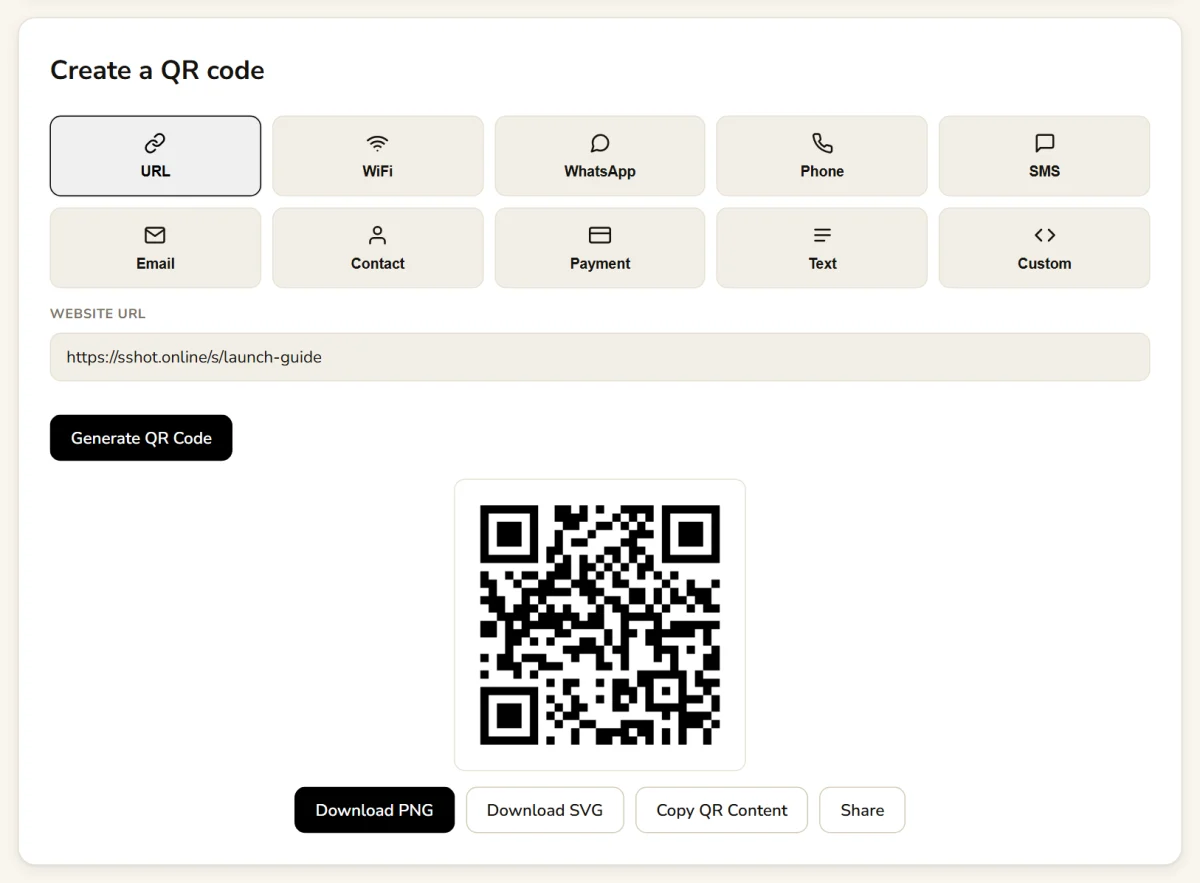
- Choose what the code should contain: URL, WiFi, WhatsApp, Phone, SMS, Email, Contact (a vCard), Payment (a UPI ID or a payment link from your provider), Text, or Custom.
- Fill in the fields for that type, for example the website URL, or the WiFi network name and password.
- Click Generate QR Code.
- Click Download PNG for documents and the web, or Download SVG for print at any size. You can also copy the encoded content or share the image.
Tip: make a short link first, then turn it into a QR code. Shorter content makes a simpler, easier-to-scan code, and the link's analytics page shows how many people scanned it.
Putting the tools together
The tools work well in combination:
- Bug report: capture and annotate with the extension, share the error log with Code Share, and paste both links into the ticket.
- Campaign link: add UTM parameters to your URL, check them with the URL parser, shorten it with a custom ending, and print its QR code on a flyer.
- Publishing a post: generate the slug, fix the headline with the text case converter, and share a preview screenshot with your team.
All of it is free, with no signup. Browse the full list on the tools page.
Frequently asked questions
Are the sshot.online tools free?
Yes. Every tool is free to use and none of them require an account or signup.
Which tools upload my data?
Only the ones that create a shareable link: screenshot upload, the URL shortener, and code share. The URL encoder, URL parser, slug generator, text case converter, JSON formatter, and QR code generator all run entirely in your browser.
What is the upload limit for screenshots?
PNG, JPG, GIF, and WebP images up to 3 MB each. Code snippets can be up to 512 KB.
Do my links expire?
Image and code links don't expire. Short links don't expire either, unless you choose an expiration time when you create them.
Which browsers does the extension support?
Chrome and other Chromium-based browsers, including Edge, Brave, and Opera. Install it from the Chrome Web Store.
Related articles
How to Convert Screenshot to Link in One Second
Paste a screenshot and get a shareable link in about a second, on the website or with the browser extension, and why that speed changes how teams share.
Read More →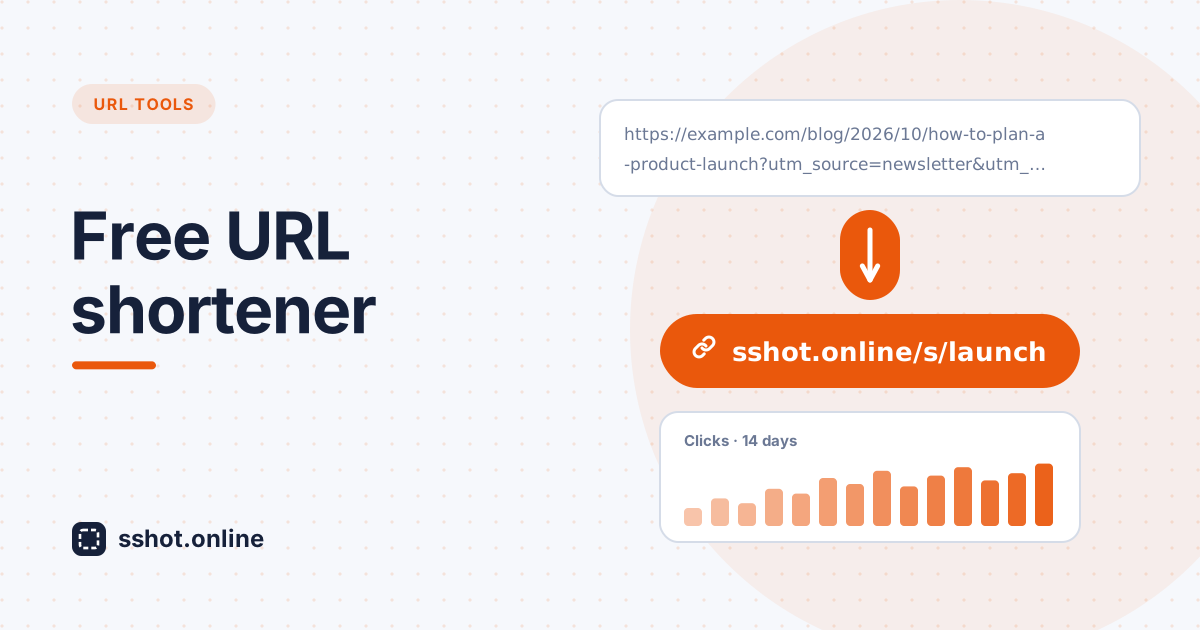
Best Free URL Shortener Tool (No Signup, Unlimited, No Expiry)
What to look for in the best free URL shortener: no signup, unlimited links, no expiry, plus free custom links, QR codes, and click stats.
Read More →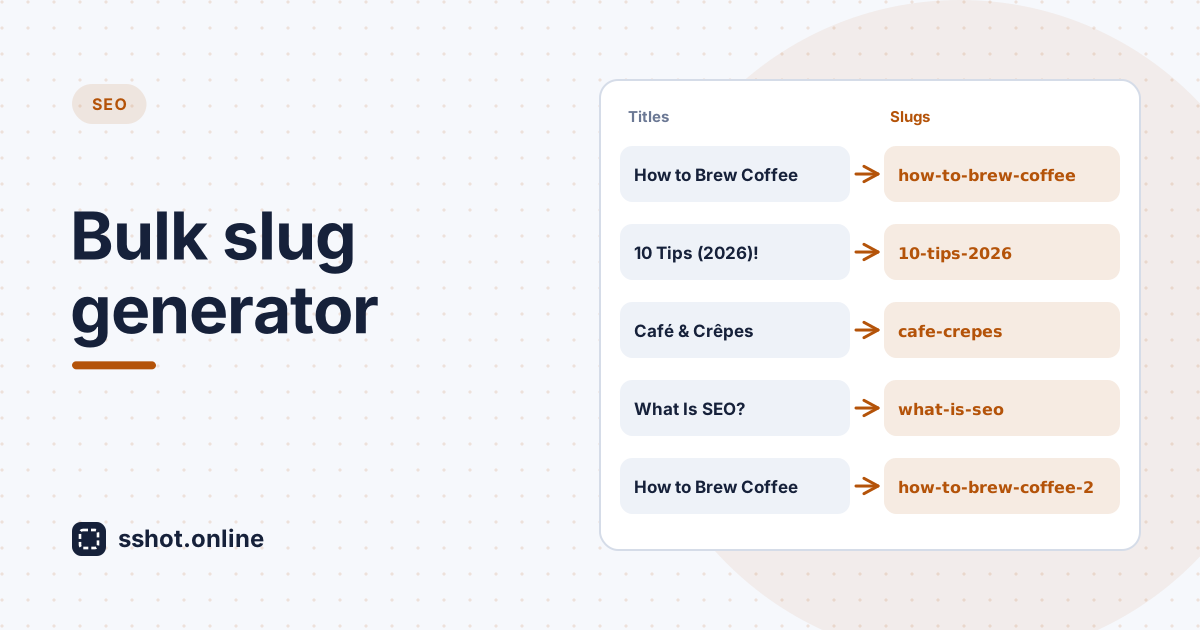
Bulk URL Slug Generator: Process Multiple Titles at Once
Turn a whole list of titles into clean, consistent, SEO-friendly slugs at once, then copy them or download a CSV.
Read More →