How to Convert Screenshot to Link in One Second
Published October 17, 2026 · 6 min read
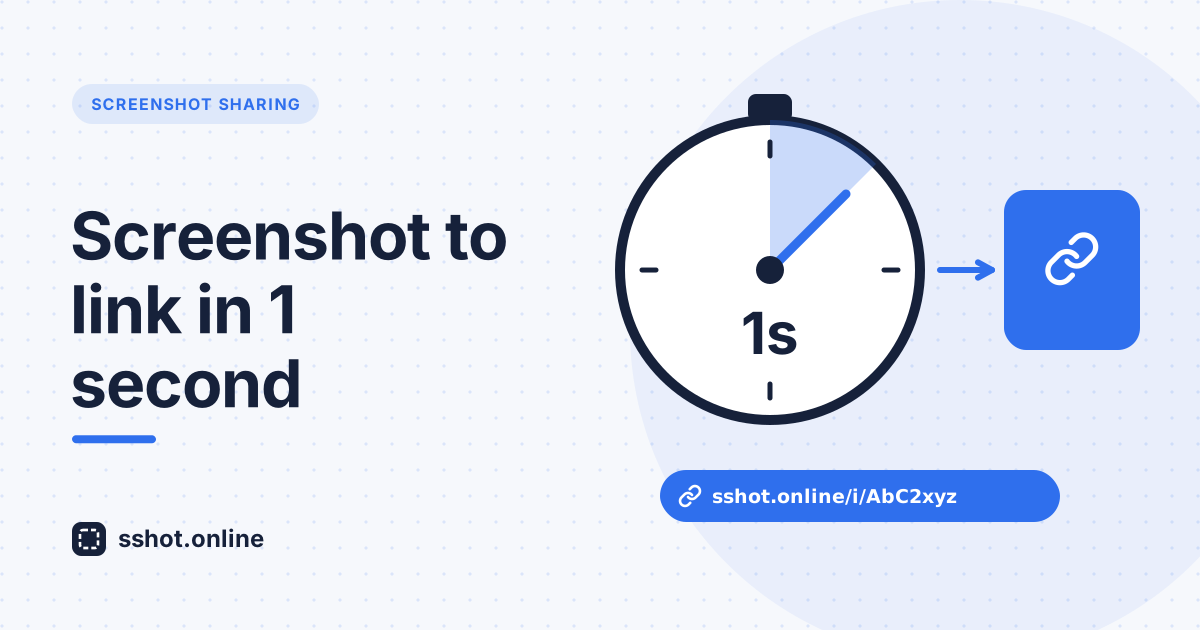
Speed matters in modern workflows. When you need to show your team something on your screen, every extra step gets in the way: capture, save, find the file, attach, send, wait. None of that is the actual work.
What if you could convert a screenshot to a link almost instantly, with a shareable URL ready about a second after you paste? That's exactly how SSHOT Online works. Developers share errors without breaking focus, support teams answer customers faster, and designers get feedback sooner, because the friction is gone.
What makes screenshot-to-link conversion fast
The traditional route goes through several separate steps: your operating system saves the screenshot as a file, you open a sharing service, browse for that file, wait for it to upload, and then hunt for the link.
SSHOT Online cuts that down to the essentials:
- No file hunting. Paste straight from your clipboard. Most screenshot tools already copy the image there.
- No account or login screens. Open the page and paste. Nothing stands in front of the upload.
- No processing delay. Your image is stored exactly as you uploaded it, with no resizing or re-compression, so the link is ready as soon as the upload finishes.
- Small files. A typical screenshot is a few hundred kilobytes, which uploads in about a second on an ordinary broadband connection.
How to convert a screenshot to a link with SSHOT Online
Option 1: paste on the website
- Take a screenshot. On Windows, Win+Shift+S copies a selected area to your clipboard. On a Mac, Cmd+Ctrl+Shift+4 does the same.
- Open SSHOT Online and press Ctrl+V (Cmd+V on a Mac). You can also drag a file onto the page or browse for it.
- About a second later, your share link and a direct image link appear. Click Copy.
- Paste the link into Slack, Teams, email, a ticket, or anywhere else.
Option 2: the browser extension
- Press Ctrl+Shift+S in any tab, or click the extension icon.
- Drag to select the area you want, and add arrows, boxes, or text if needed.
- Click upload. The link is copied to your clipboard automatically, ready to paste.
The extension works in Chrome, Edge, Brave, and Opera and captures what's in your browser tab. For anything outside the browser, use your system screenshot tool and paste on the website.
Either way, your colleagues just click the link to see the screenshot. No downloads, no waiting.
The workflow, step by step
| Step | What happens | Time |
|---|---|---|
| Capture | Your screenshot tool copies the image to the clipboard | Instant |
| Paste | Press Ctrl+V on SSHOT Online | Instant |
| Upload | The image is sent and stored as-is | About a second for a typical screenshot |
| Link | A unique share link and direct link are created | Immediate |
Compare that with saving a file, opening your email, attaching it, and waiting for it to send, and the difference is obvious.
Why one-second speed actually matters
Saving a minute or two per screenshot might not sound like much. The real benefit is what happens when sharing becomes effortless: people do it all the time, without thinking.
- A developer hits an error. Instead of breaking focus to save and attach a file, they paste it, share the link, and keep working.
- A support agent helps a customer. They share visual guidance in the same reply, while the customer is still there.
- A designer needs feedback. They drop a link in the team chat and get reactions right away, with no meeting to schedule.
Fast sharing changes how teams communicate
When a tool is fast enough to use reflexively, the habit is what changes. Long explanations become annotated screenshots. Questions get answered with visual evidence. Problems get documented with an image instead of a paragraph.
That shift reduces misunderstandings and speeds up collaboration. New team members learn faster from visual examples, and screenshots linked in tickets and docs keep useful context around long after the conversation ends.
Rolling it out to your team
- Share the link and the extension. Bookmark SSHOT Online, and install the extension for anyone who works mostly in the browser.
- Keep using your favorite tools. Your existing screenshot shortcuts still work; you just paste the result instead of attaching a file.
- Agree on a simple privacy rule. Anyone with a link can view the image, so crop or cover passwords, customer details, and other sensitive information before uploading.
There's no account to create and nothing to configure, so most people are up and running the first time they try it.
Conclusion
Converting a screenshot to a link in about a second sounds like a small improvement until you use it every day. Removing friction changes how often your team shares visually, and that makes problems clearer, answers faster, and collaboration smoother.
Try it now: take a screenshot, paste it on SSHOT Online, and share the link.
Frequently asked questions
How can a screenshot become a link in about a second?
You paste the screenshot straight from your clipboard, so there's no file to find, and SSHOT Online stores the image without any processing. A typical screenshot is a few hundred kilobytes, which uploads in about a second on a normal broadband connection.
Do I lose image quality?
No. SSHOT Online stores your image exactly as uploaded, with no resizing or re-compression.
What if my internet connection is slow?
Upload time depends on your connection and the file size. On a slower connection or with a large image (up to the 3 MB limit), it may take a few seconds. Cropping to just the relevant area keeps files small and uploads fast.
Can I convert several screenshots to links?
Yes. Upload them one after another and each gets its own link. Paste the links together in your message, in order.
How many screenshots can I convert to links per day?
There's no daily or monthly cap. SSHOT Online is free and needs no signup. Each image can be up to 3 MB.
Related articles
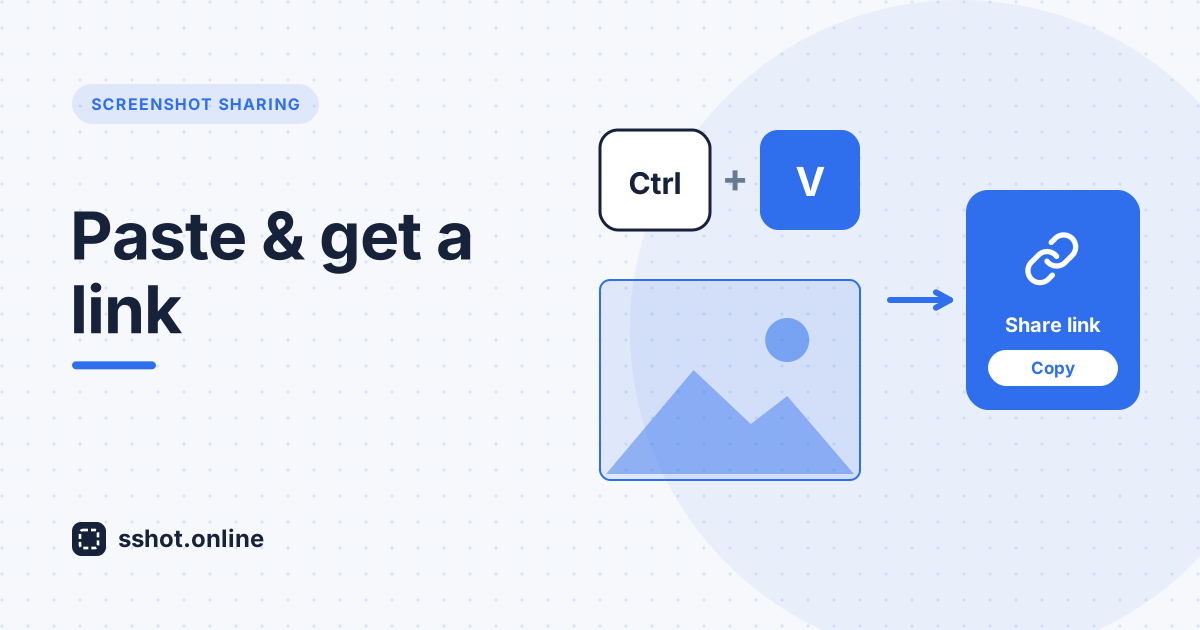
How to Paste a Screenshot and Get a Link Instantly
Copy a screenshot, paste it, get a shareable link — no saving files, no upload dialog. The fastest way to turn a screen grab into a URL.
Read More →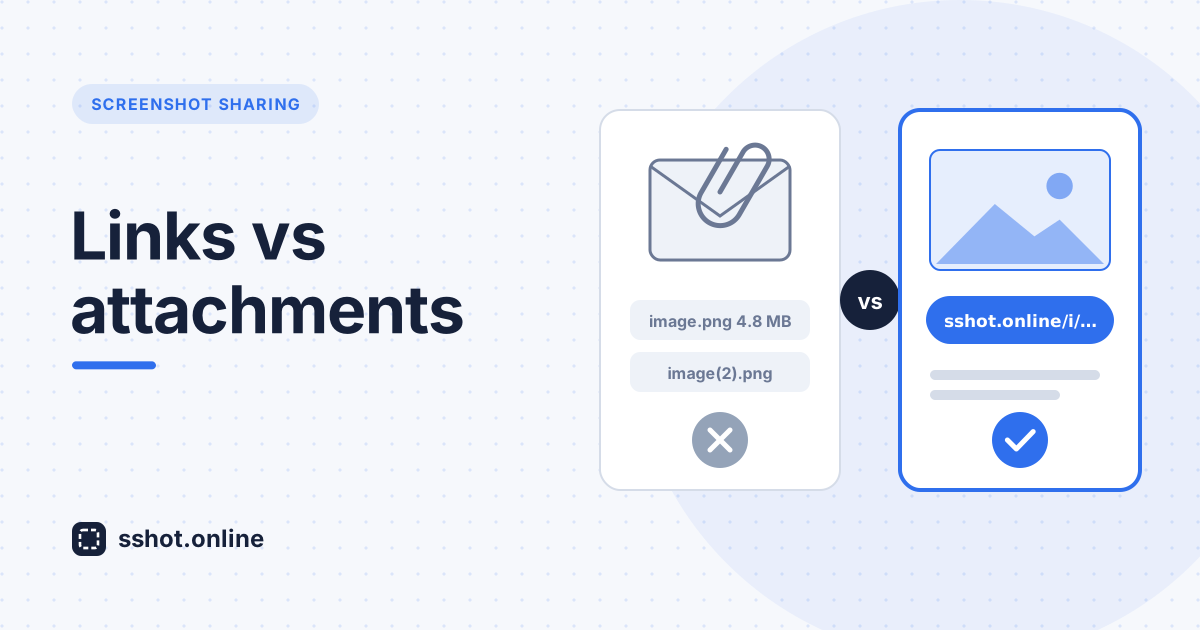
Screenshot Sharing Problem Solved: Instant Links vs Email Attachments
Why sharing screenshots by email is so frustrating, and how instant links fix scattered copies, full inboxes, and forced downloads.
Read More →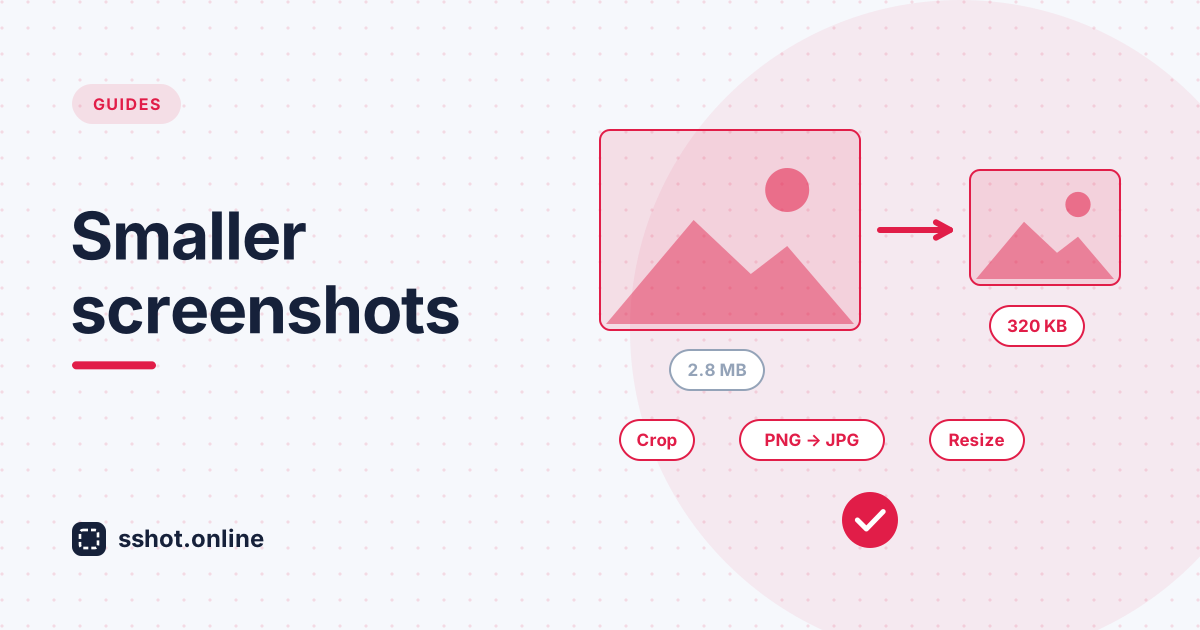
How to Reduce Screenshot File Size (5 Quick Ways)
Screenshot too big to upload or email? Five quick ways to shrink the file size without wrecking the quality. Free, no tools to install.
Read More →