Screenshot Sharing Problem Solved: Instant Links vs Email Attachments
Published October 17, 2026 · 6 min read
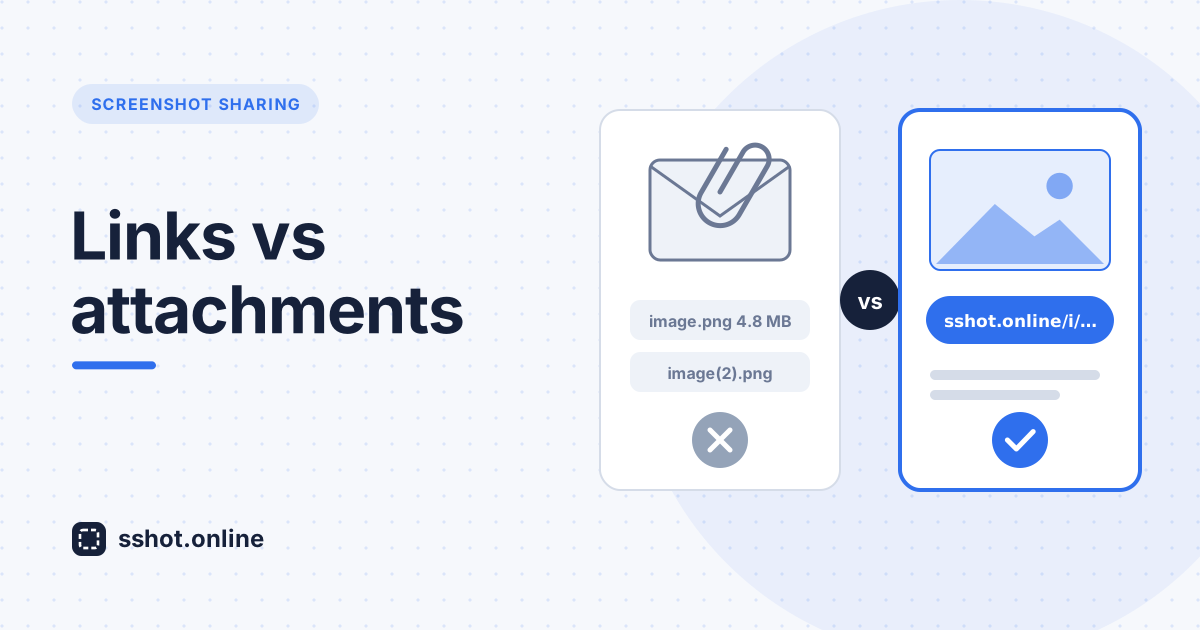
You've been here countless times. A colleague needs to see something on your screen, so you take a screenshot. Now what? Email seems logical, but your inbox is already full of old screenshots. A chat attachment works until someone needs to find that image again three months later. Cloud storage means folders, permissions, and too many clicks. Nothing feels fast.
This is the everyday screenshot sharing problem. Visual communication should be effortless, but the usual tools add friction at every step. There's a better way, and it takes about two seconds.
The real problem: why current screenshot sharing methods fail
Here's what usually happens. You capture an image, your computer saves it somewhere, you find the file, attach it to an email, and send it. Your recipient downloads it, opens it, and now that screenshot exists in several places: your sent folder, their inbox, their downloads folder, and maybe a forwarded thread or two.
Multiply that across a team sharing dozens of screenshots a day and the problems pile up:
- Every send creates more copies scattered across inboxes and computers.
- Attachments clutter mailboxes and eat into storage quotas.
- Recipients have to download a file before they can see it.
- When you send an updated screenshot, it's easy to lose track of which one is current.
- Copies of sensitive screenshots end up stored in places you no longer control.
- Finding an old screenshot means digging through email threads.
Ask any team about it and you'll hear the same complaints. Most keep using the old workflow simply because nothing better seemed readily available.
Why email attachments became the default (and why that's a mistake)
Email attachments feel natural because email itself feels natural: write a message, attach a file, send. But look closer and the cracks show.
Size and policy limits. Email providers cap attachment sizes, and a few high-resolution screenshots can hit the limit. Some company IT policies strip or block attachments altogether, and suddenly your simple screenshot doesn't arrive.
Redundant storage. Every attachment is stored by your provider, the recipient's provider, and any backup systems along the way. The same image ends up in many places.
Loss of control. Once a screenshot showing client details, financial data, or internal systems lands in someone's inbox, it can be forwarded and kept indefinitely. You can't take it back.
The solution: instant link-based screenshot sharing
The fix is almost too simple. Instead of attaching a file, you share a link. The screenshot lives in one place, and everyone opens the same image in their browser.
Here's how it works with SSHOT Online:
- Capture your screenshot however you like.
- Paste it (Ctrl+V) or drop it on SSHOT Online. It uploads in about a second. With the browser extension, capture and upload happen in one step.
- Copy the instant link.
- Paste it into Slack, Microsoft Teams, email, a ticket, or anywhere else.
- Your colleague clicks and sees the screenshot immediately, on any device, with no download.
No account, no file management, no attachment limits to worry about. What used to take several steps now takes seconds.
How SSHOT Online solves each screenshot sharing problem
| Problem | How instant links fix it |
|---|---|
| Scattered copies | The image is hosted once. Everyone who opens the link sees the same file. |
| Inbox and storage overload | You send a short link, not a file, so nothing heavy lands in anyone's mailbox. |
| Downloads before viewing | Click the link and the image opens in the browser, on desktop or mobile. |
| Confusing updates | Every upload gets its own link. When you send a new version, say so in your message, and the old link still shows the old screenshot for comparison. |
| Hard-to-find old screenshots | Links live where the conversation happened: in the ticket, doc, or chat thread. They keep working, and there is no expiry. |
| Clunky collaboration | Links work in every app that accepts text. A direct image link also embeds in docs, wikis, Markdown, and forums. |
One honest caveat: anyone who has a link can view the image. Links are random and unlisted, and there's no public gallery, but for anything truly confidential (passwords, customer records, financial details) crop or cover the sensitive part first, or keep it inside a system with access controls.
Real-world impact: what changes when you switch
- Developers paste a screenshot link into a bug report or pull request instead of managing files.
- Support teams send customers a link that opens instantly on any device.
- Designers get feedback faster because sharing a concept takes seconds.
- Project managers document issues on the spot without email complications.
The small time savings add up across a team, but the bigger change is behavioral: when sharing a screenshot is trivially easy, people do it more often, and visual evidence replaces ambiguous descriptions. Understanding happens faster and issues get resolved sooner.
Making the switch
There's nothing to set up. Bookmark SSHOT Online or install the extension, and next time you'd attach a screenshot, paste it there instead and send the link.
Start small: share one screenshot by link instead of email and notice how quickly your colleague sees it, with no download and nothing added to anyone's inbox. Once it clicks, it quickly becomes your default.
Conclusion
The screenshot sharing problem you keep running into has a simple solution. Email attachments aren't your only option, and for screenshots they're usually the worst one. Instant links are faster, keep inboxes clean, avoid scattered copies, and make collaboration feel effortless.
Try it once with SSHOT Online. Within days you'll wonder why you put up with attachments for so long. For a deeper comparison, see why screenshot sharing is better than email attachments.
Frequently asked questions
Why switch from email attachments if I'm already comfortable with them?
Attachments create scattered copies, fill up inboxes, hit size limits, and force recipients to download files. A screenshot link is faster to send, opens instantly, and keeps everyone looking at the same image.
Are instant links reliable for long-term use?
Yes. Images uploaded to SSHOT Online stay online and their links don't expire, so a link in an old ticket or document keeps working. Keep the link wherever you shared it, since there's no account history to look it up later.
Can I see whether someone opened my screenshot link?
SSHOT Online doesn't show who viewed an image. If you need confirmation, ask the recipient to reply in the thread where you shared the link.
What if someone shares my link with people who shouldn't see it?
Anyone with the link can view the image, so avoid uploading screenshots with sensitive information. If you need an upload removed, contact us and include the link.
Will my team struggle with a new way of sharing screenshots?
No. Paste a screenshot, copy a link, and send it. There's no account or setup, so most people pick it up the first time they try it.
Related articles
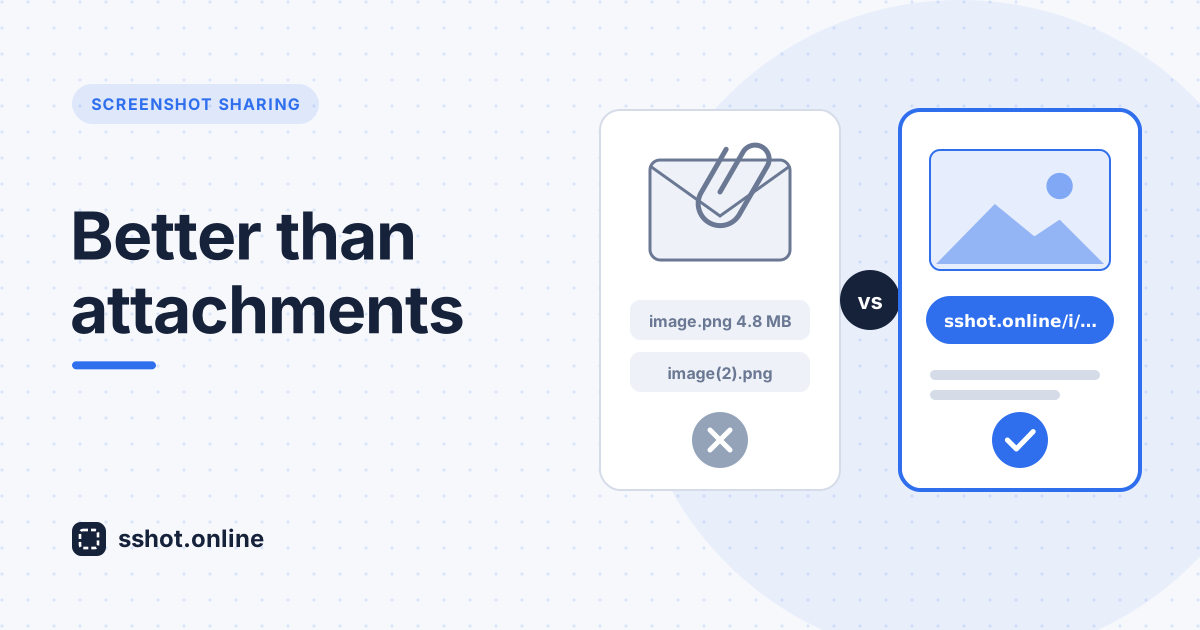
Why Screenshot Sharing Is Better Than Email Attachments
Discover why sharing a screenshot link beats sending email attachments, and the best way to share screenshots with your team.
Read More →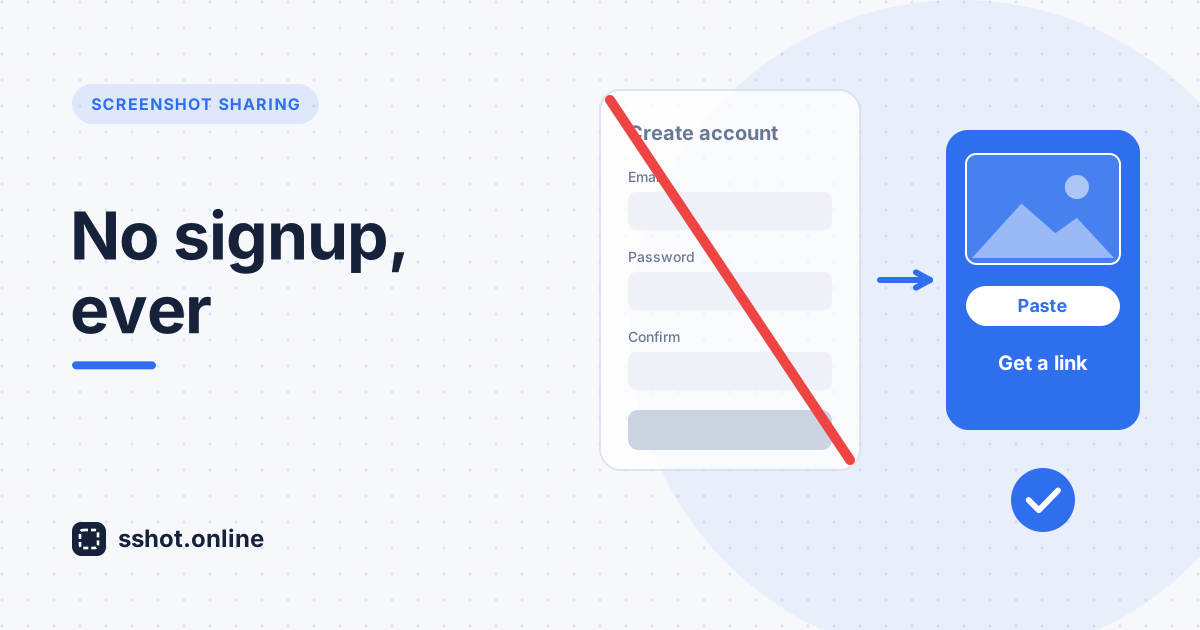
No Signup, Ever: The Frictionless Way to Share Screenshots
Why instant screenshot sharing with no signup and no account is faster and simpler, and how to share a free screenshot link in seconds.
Read More →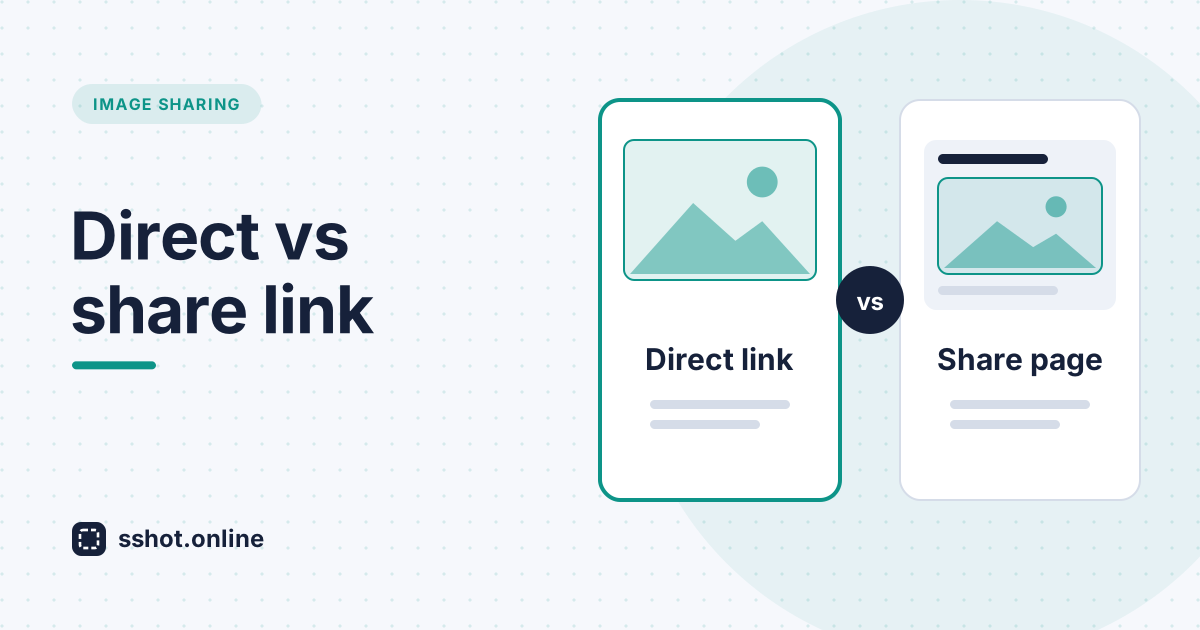
Direct Image Link vs. Share Link: Which One Should You Use?
Every sshot.online upload gives you two URLs. Here is exactly when to use the share link and when to use the direct image link.
Read More →