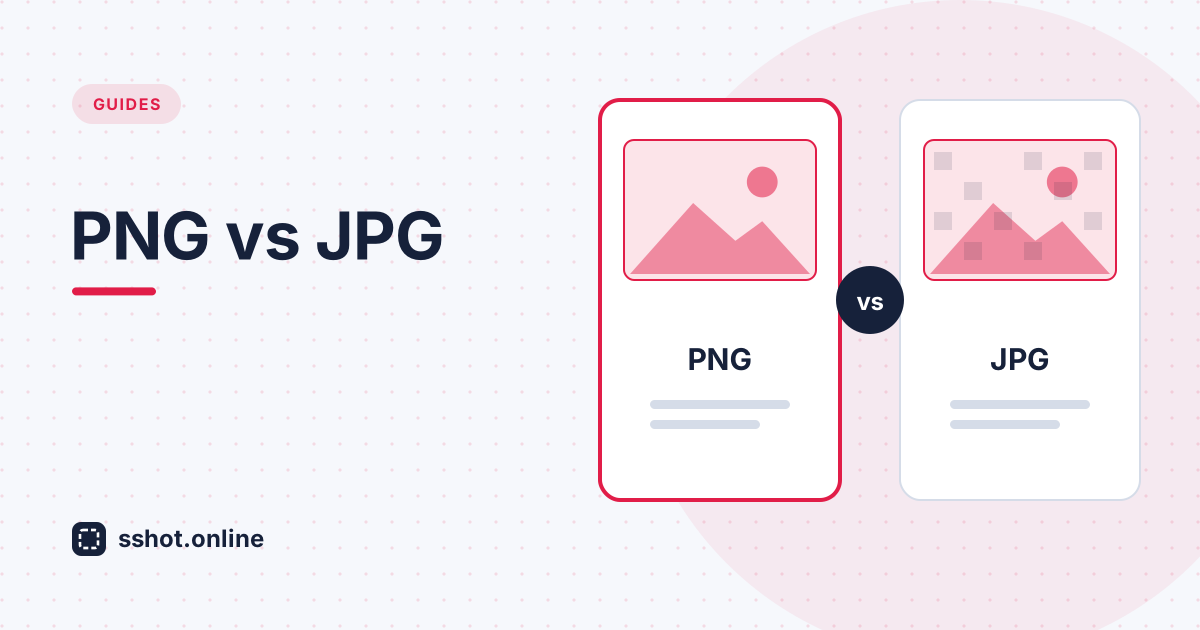
PNG and JPG both work for screenshots, but they are good at different things. Picking the right one keeps your image sharp and small. Here is the simple rule.
Use PNG for text and UI
PNG is lossless, so sharp edges — text, code, icons, lines, and interface elements — stay crisp. The trade-off is a larger file. For most screenshots of apps, dashboards, and documents, PNG is the right call.
Use JPG for photos and gradients
JPG uses lossy compression that is great for photographs and smooth gradients but adds fuzzy artefacts around text. If your screenshot is mostly a photo or image, JPG will be much smaller with little visible loss.
What about WebP?
WebP often beats both — smaller than PNG for UI and smaller than JPG for photos — and every modern browser supports it. sshot.online accepts PNG, JPG, GIF, and WebP.
Quick rule of thumb
Text or interface → PNG (or WebP). Photo or gradient → JPG (or WebP). If the file is too big either way, see how to reduce screenshot file size, then share it as a link. Free, no account.