QR Code Generator for Screenshots: Print and Scan Instantly
Published November 4, 2026 · 5 min read
A screenshot is useful, but it stays on a screen until someone sends it. A QR code changes that. With a QR code generator, you turn a screenshot link into a small square that anyone can scan with a phone camera. The image opens instantly, with no typing and no hunting for files. This guide explains what a QR code for a screenshot does, when it helps, and how to make one in a few simple steps.
What a QR code for a screenshot does
A QR code stores a web address in a pattern of black and white squares. When someone scans it, their phone opens that address. If the address is a page showing your screenshot, the QR code bridges the printed or physical world and your digital image.
It removes the awkward middle steps. The viewer doesn't need your email address, the file, or a login. They point their camera and see exactly what you want them to see.
When a screenshot QR code helps
- Printed guides: add a QR code to a paper manual so readers can open a clear, zoomable screenshot of a setting or step on their phone.
- Meeting rooms: put a code on a slide or whiteboard so attendees can grab a diagram or dashboard on their own devices.
- Event materials: include codes on posters or handouts that lead to screenshots of schedules, maps, or product views.
- Support materials: print a code on a setup card so customers can see a visual walkthrough of the steps.
In each case, the code saves people from typing a long address and makes the image feel immediately accessible.
How to create a QR code from a screenshot
- Capture your screenshot with your device's screenshot tool.
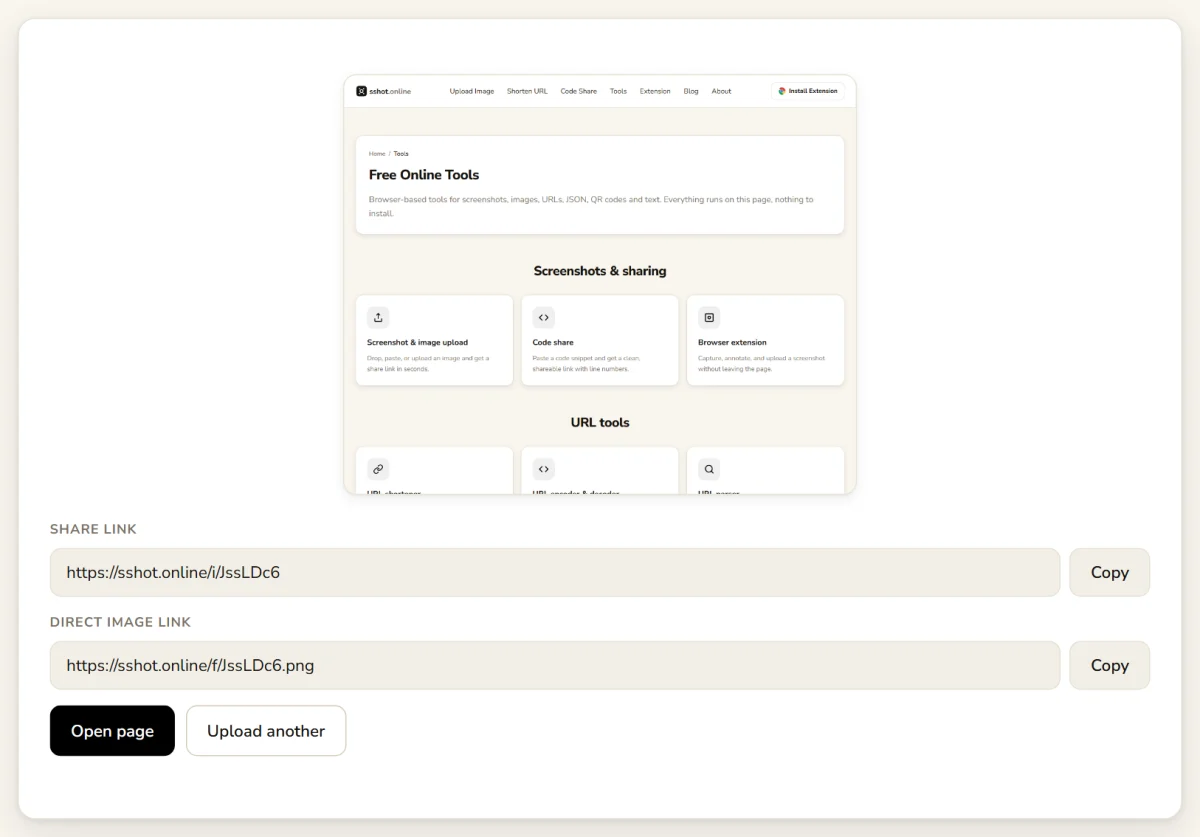
- Upload it and copy the link. Paste or drop the image on SSHOT Online, then click Copy next to the share link.
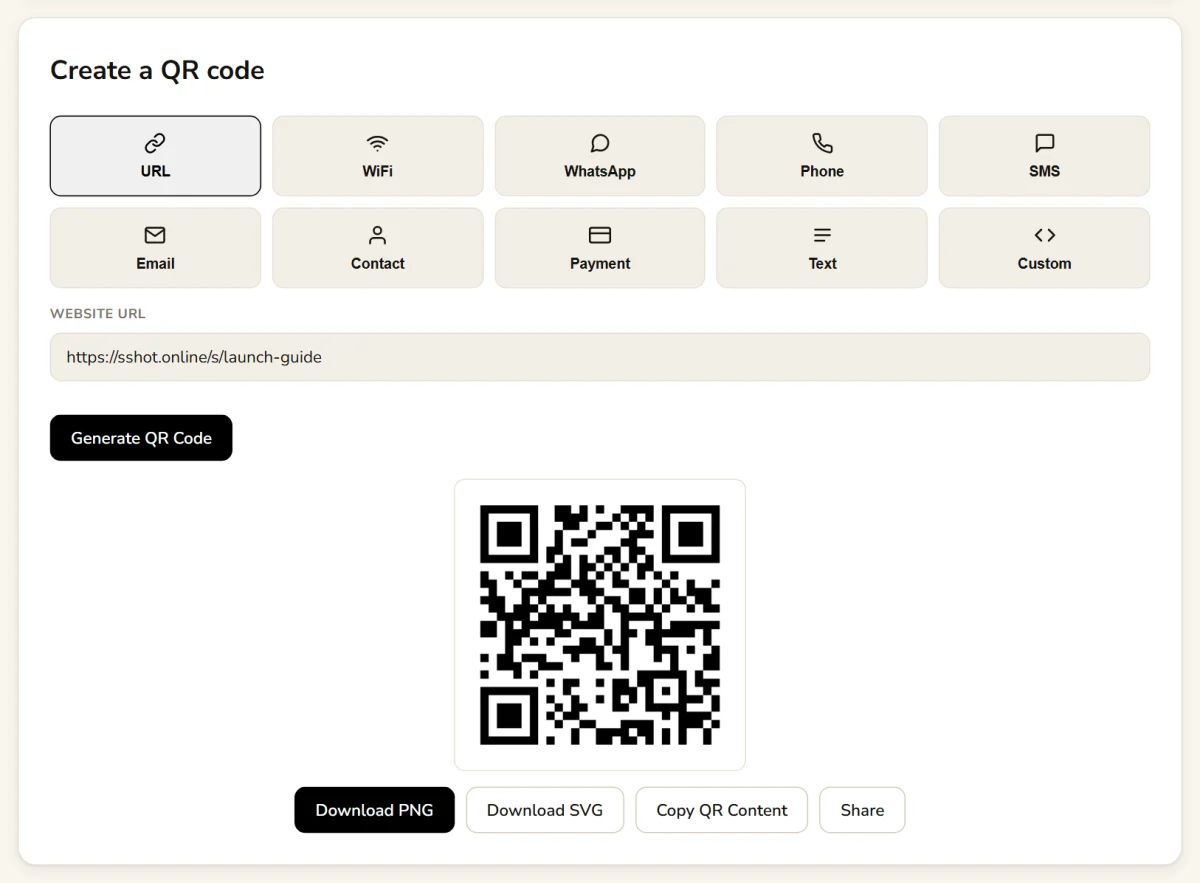
- Open the QR code generator. URL is already selected. Paste your link into Website URL and click Generate QR Code.
- Download the code. Choose Download PNG for documents, slides, and the web, or Download SVG for print, since it stays sharp at any size.
- Test before you print. Scan the code with your phone and confirm it opens the right screenshot.
Testing is the most important step. A quick scan from a few angles and distances tells you whether the code is clear enough for real use.
Want to know how many people scanned it?
Paste your screenshot link into the URL shortener
instead and turn on Generate QR Code. You get a QR code for the short link,
plus a private stats page that counts every click and scan. You can also pick a readable custom
ending, such as /s/setup-guide.
Tips for printing and scanning reliably
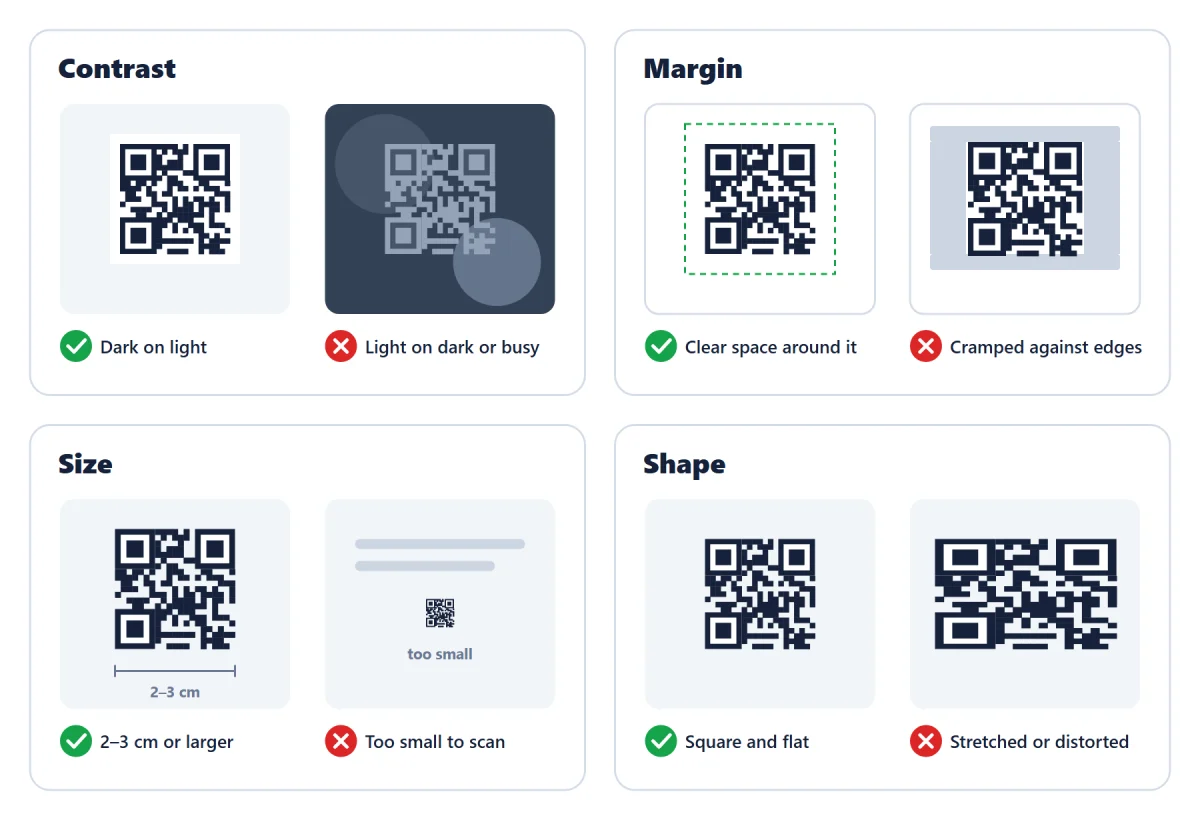
- Use good contrast. Dark squares on a light background scan most reliably. Avoid light codes on dark or busy backgrounds.
- Keep a margin. Leave clear space around the code so scanners can find its edges.
- Choose a sensible size. A code printed too small is hard to read. Around 2 to 3 cm wide works for handouts held in the hand; posters read from across a room need a much larger code.
- Don't distort it. Stretching, bending, or cropping the code can stop it scanning.
- Avoid glare. Glossy paper and laminated cards can reflect light; a matte finish scans more easily.
- Check the link first. Make sure the screenshot still opens before you print hundreds of copies, and check again before reusing old printouts.
Conclusion
A QR code generator turns a screenshot into something anyone can open with a single scan. It works well on printed guides, meeting materials, event posters, and support handouts. The process is quick: capture, upload, generate, download, and test. Keep your codes clear with good contrast, sensible sizing, and a test scan before printing, and your screenshots move from the screen into the real world with ease.
Try the free QR code generator and create your first code today.
Frequently asked questions
Do people need an app to scan a QR code?
No. Most modern phone cameras read QR codes directly. Point the camera at the code and tap the link that appears to open the screenshot.
Can I use a screenshot QR code on a printed poster?
Yes. Make the code large enough to scan from a comfortable distance, download it as SVG so it stays sharp, and test it at the size you plan to print.
Can I change the screenshot after printing the QR code?
No. The QR code points to one link, and each uploaded screenshot gets its own link that can't be swapped for a different image. If you need to update the screenshot, upload the new version and print a new code.
Is the QR code generator free?
Yes. The SSHOT Online QR code generator is free and needs no signup. It also creates codes for WiFi, phone numbers, email, contacts, and more.
What should I do if a QR code doesn't scan?
Check the contrast, print it larger, leave a clear margin around it, and remove glare from the surface. Confirm the link opens in a browser. If it still fails, regenerate the code and test again.
Related articles
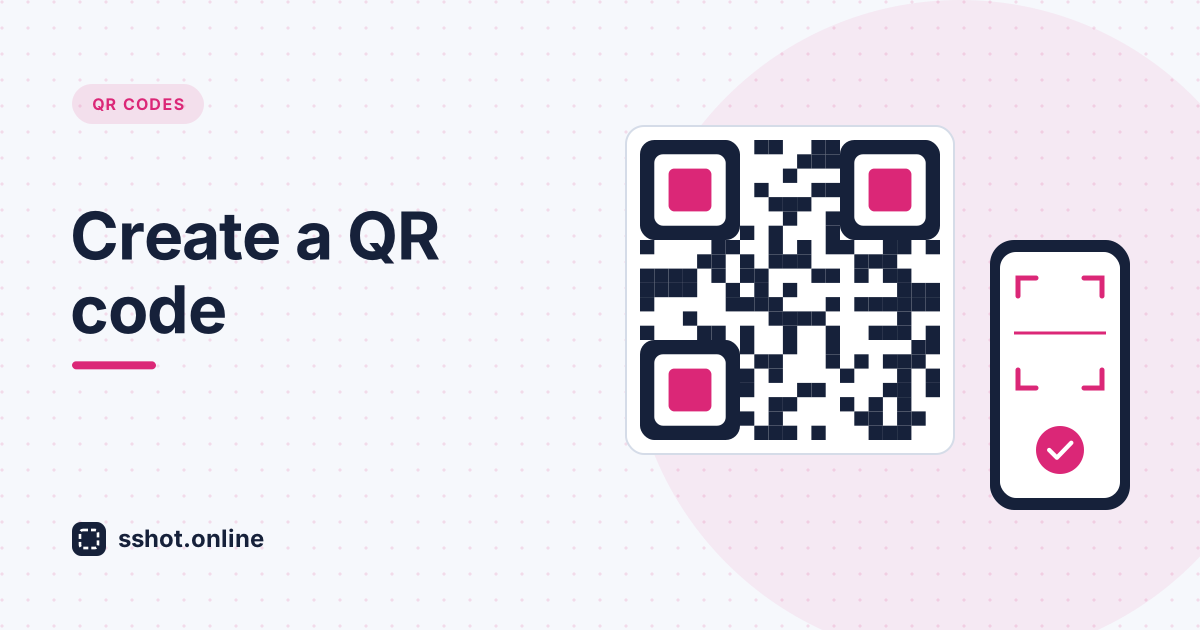
How to Create a QR Code
A quick guide to generating a QR code for a link, WiFi network, or contact card, and downloading it to use anywhere.
Read More →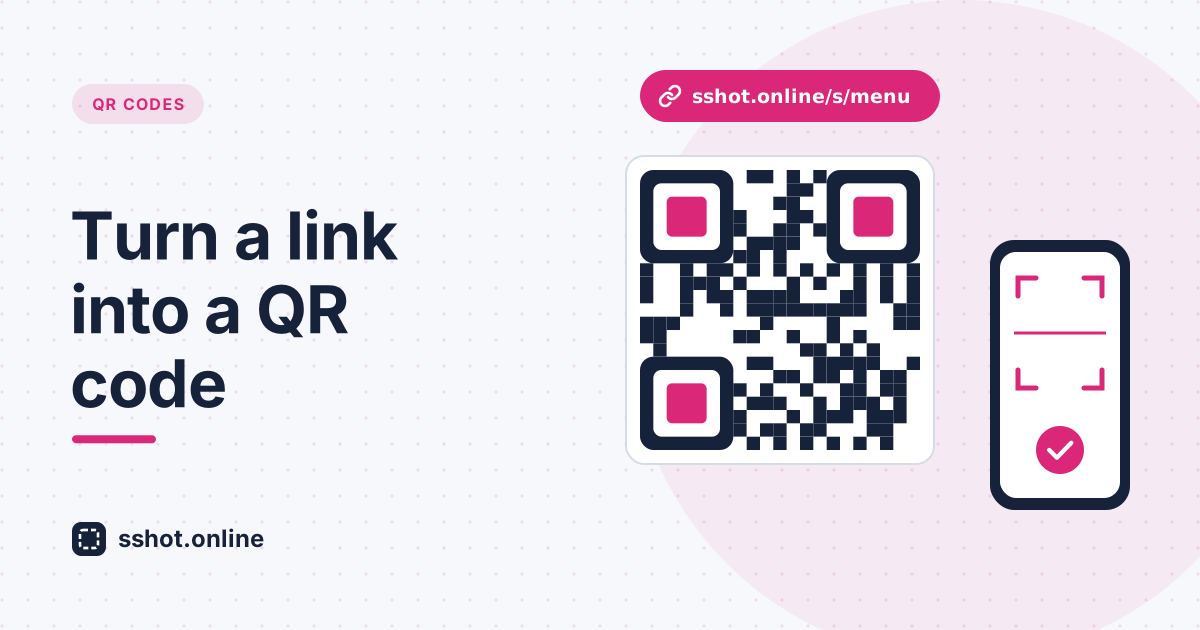
How to Turn a Link Into a QR Code (Start With a Short URL)
Make a cleaner, more reliable QR code by shortening the link first. Here is why short URLs scan better, and how to do it free.
Read More →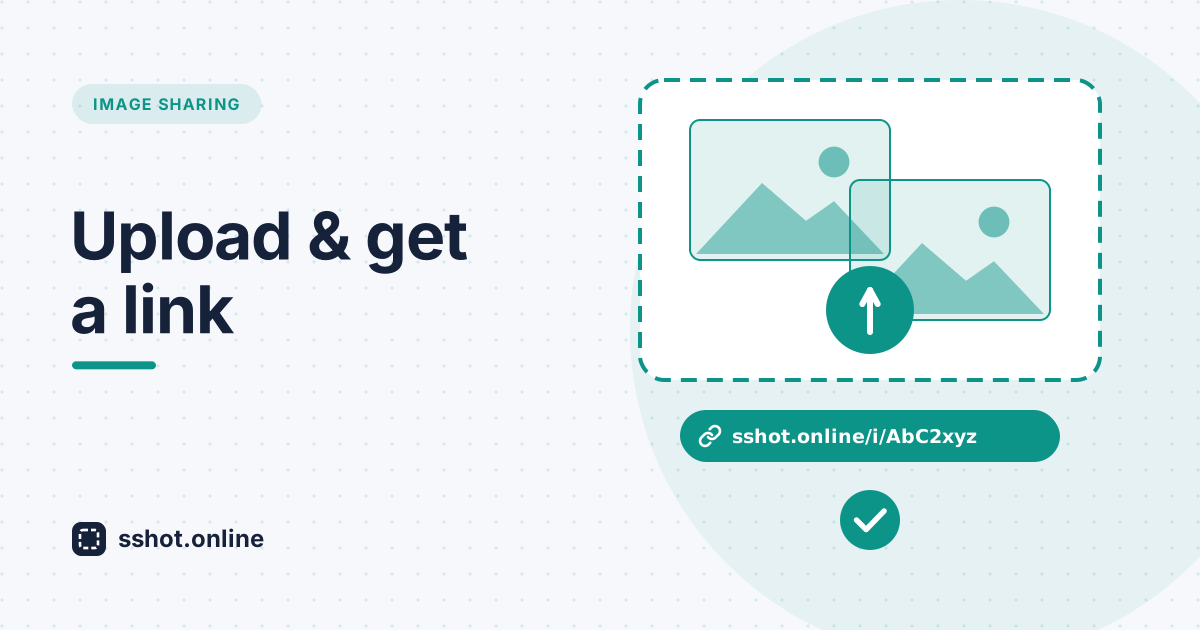
How to Upload an Image and Get a Shareable Link
A simple guide to uploading an image and creating a link that you can share with anyone.
Read More →