Git Commands Explained: A Visual Guide for Beginners
Published November 9, 2026 · 16 min read
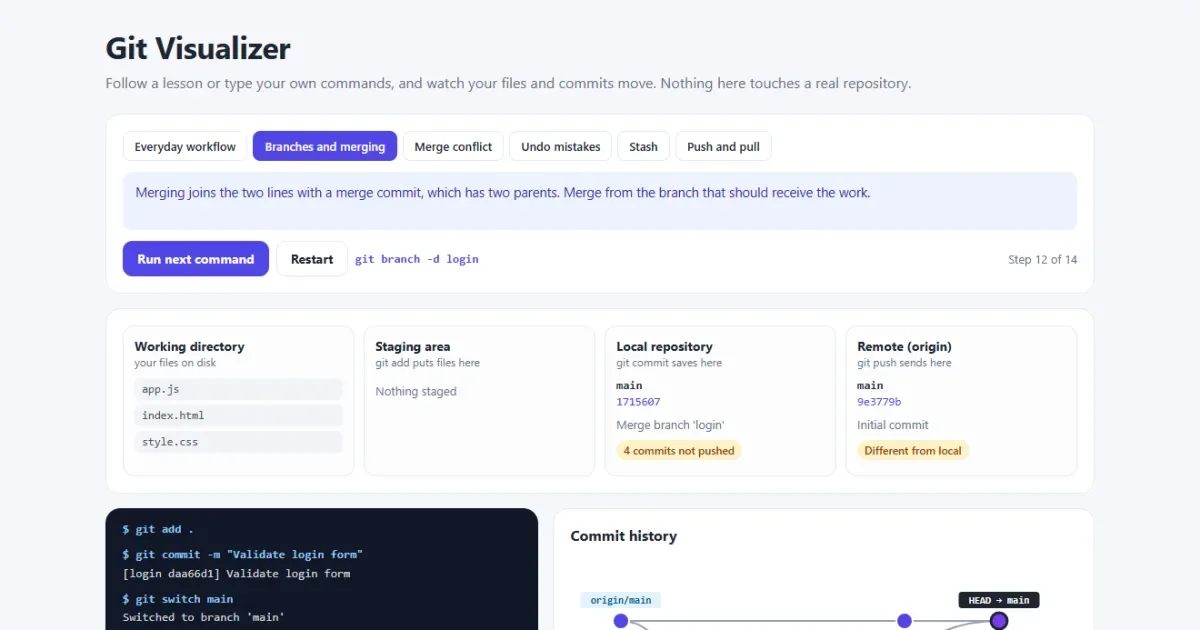
Git records the history of your project, so you can go back to any earlier version, try ideas without breaking anything, and work with other people on the same code. Nearly every software team uses it.
You only need about a dozen commands for daily work. This guide explains them in the order you'll use them, and a live visualizer shows what each one does to your files and your history.
Open the Git visualizer Run commands safely and watch what they do.
Git commands cheat sheet
| Command | What it does |
|---|---|
git init | Starts a new repository in this folder |
git clone URL | Downloads an existing repository |
git status | Shows what has changed |
git diff | Shows the changes line by line |
git add FILE | Stages a change for the next commit |
git commit -m "..." | Saves the staged changes in the history |
git log --oneline | Lists the commits |
git switch -c NAME | Creates a branch and moves onto it |
git switch NAME | Moves to another branch |
git merge NAME | Brings a branch into the current one |
git pull | Downloads and merges new commits |
git push | Uploads your commits |
git restore FILE | Discards unstaged changes to a file |
git stash | Puts unfinished work aside |
Set up Git once
After you install Git, tell it your name and email. Every commit records them.
git config --global user.name "Your Name"
git config --global user.email "you@example.com"
git config --global init.defaultBranch main
Then either start a new project, or copy one that already exists:
# start tracking the current folder
git init

# or download an existing project
git clone https://github.com/user/project.git
The idea that makes Git click: four places
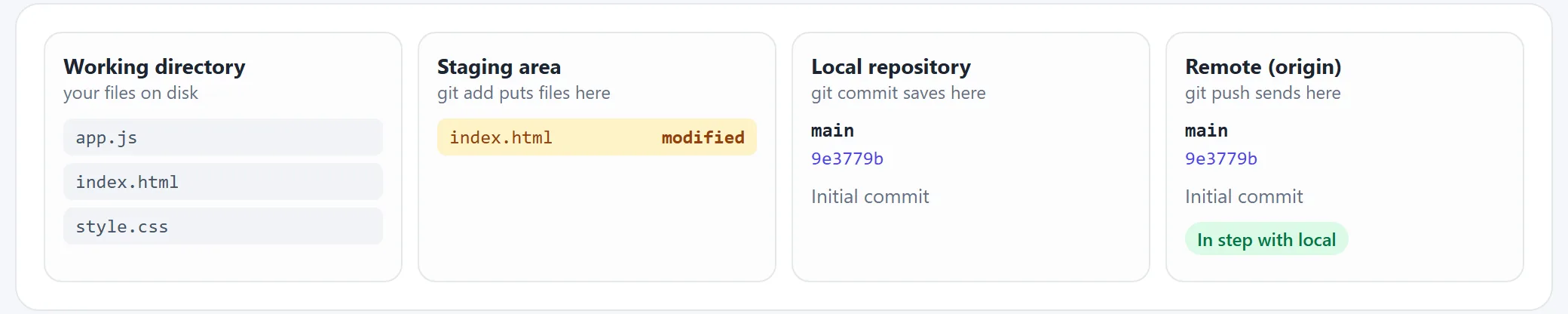
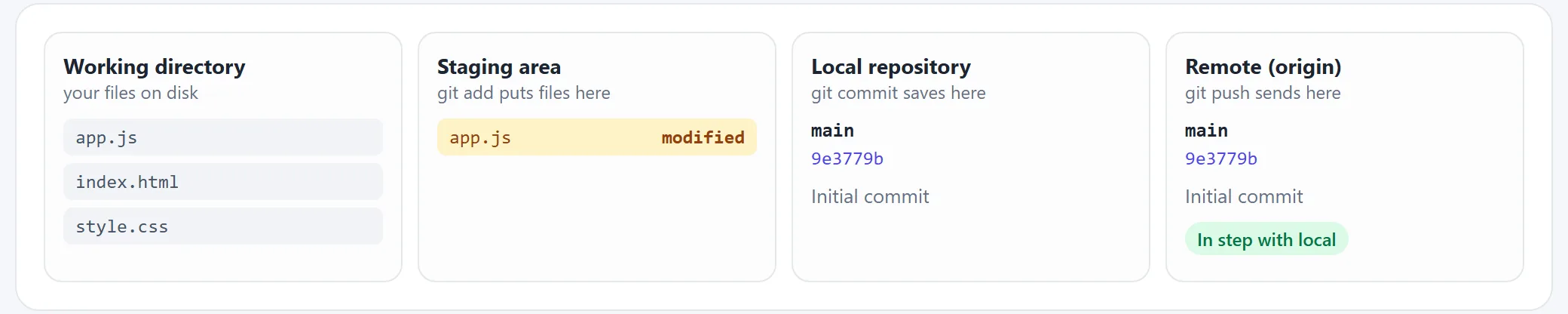
Most Git confusion comes from not knowing where your work currently is. It's always in one of four places, and most commands simply move it from one to the next:
- Working directory: the actual files you edit.
- Staging area: the changes you've picked for the next commit.
- Local repository: the saved history on your computer.
- Remote: the shared copy on a server such as GitHub, usually called
origin.
git add moves work from 1 to 2, git commit from 2 to 3, and
git push from 3 to 4. git pull brings work back the other way.
The everyday workflow
git status                       # what changed?
git diff                         # show me the exact lines
git add index.html               # stage one file
git add .                        # or stage everything
git commit -m "Update home page" # save it
git push                         # share it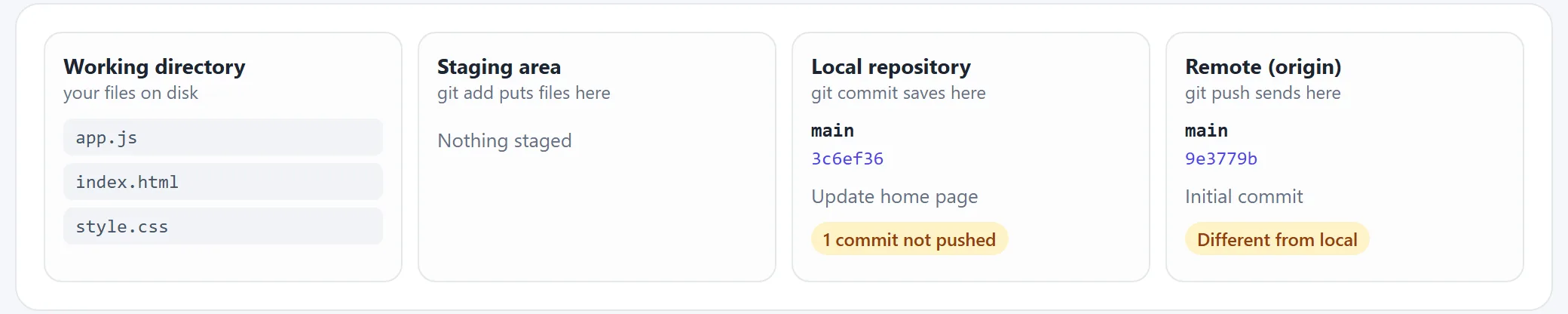
The staging area can seem like an extra step, but it lets you make tidy commits. If you've fixed a bug and started a new feature in the same session, you can stage and commit them separately.
Run git status constantly. It never changes anything, and it usually tells you what to
do next. To see which changes are already staged, use git diff --staged.
Write commit messages that say what the commit does, such as “Fix crash when the cart is empty”. Your future self will read them. Try the everyday workflow.
Keep files out of Git with .gitignore
Some files should never be committed. List them in a file named .gitignore:
node_modules/
dist/
*.log
.env
This only affects files Git isn't tracking yet. If you've already committed a file, also run
git rm --cached .env to stop tracking it. The file stays in the old
commits, so if it held a password or an API key, change that key. Our guide to
sharing config files safely has
more on this.
Branches: work without breaking main
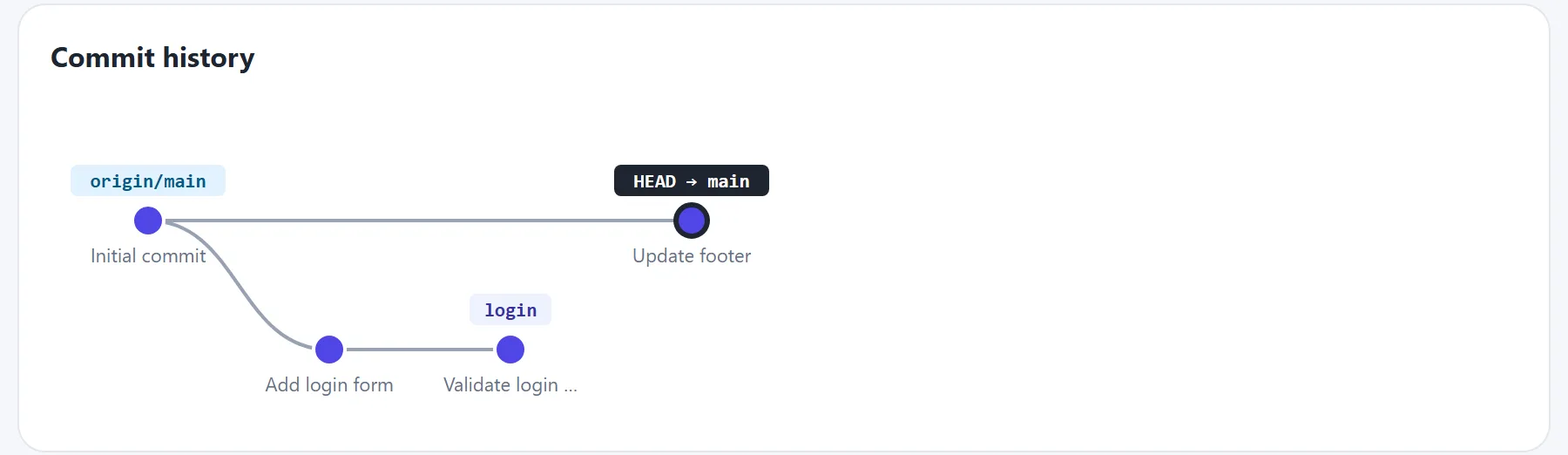
A branch is a separate line of work. Create one for each feature or bug fix, so that
main always stays in a working state.
git branch                # list branches
git switch -c login       # create a branch and move onto it
git switch main           # move back to main
git branch -d login       # delete a merged branch
git branch -m new-name    # rename the current branch
A branch is just a label that points at a commit, which is why creating one is instant. When you commit, the label of your current branch moves forward. HEAD simply means “where you are now”.
Older tutorials use git checkout and git checkout -b. They still work, but
git switch does only one job and is harder to misuse.
Merging branches
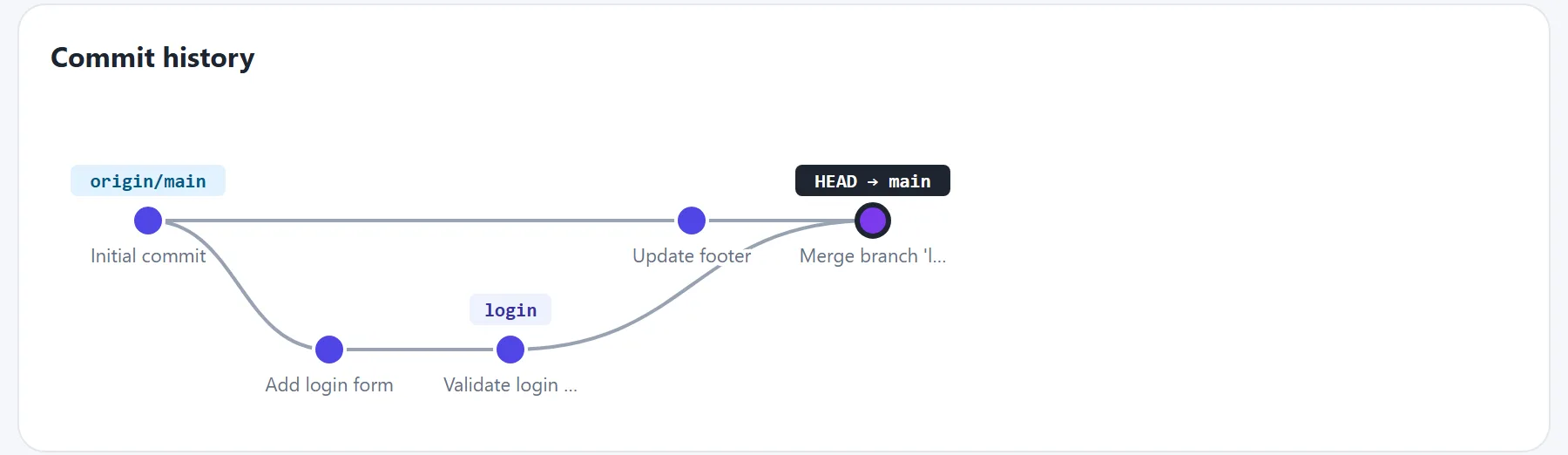
Switch to the branch that should receive the work, then merge the other one in:
git switch main
git merge login
There are two kinds of merge. If main hasn't moved since you branched, Git just slides
the label forward. That's a fast-forward. If both have new commits, Git creates a
merge commit with two parents.
See both lines form and join.
How to fix a merge conflict
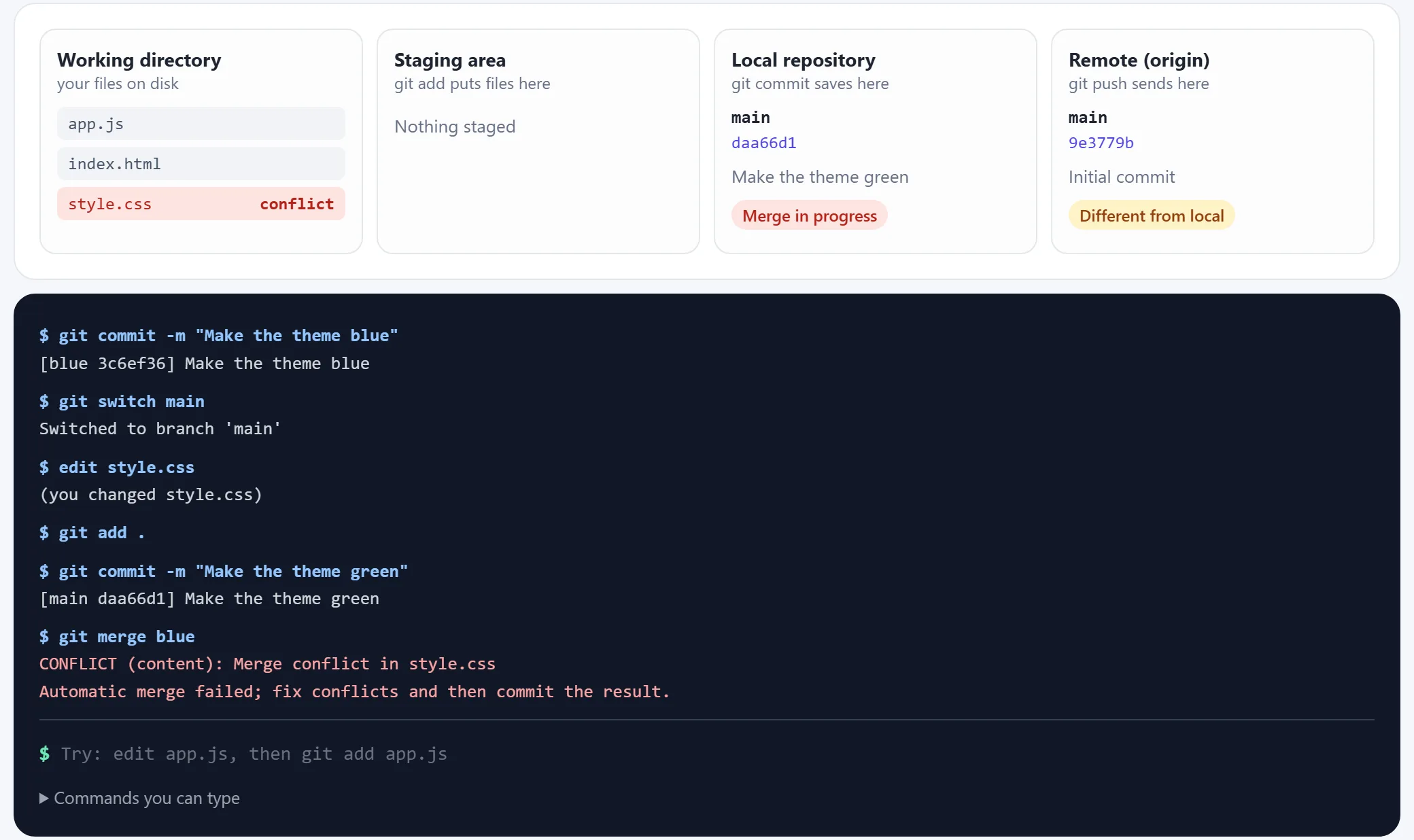
A conflict happens when two branches change the same lines in different ways, so Git can't tell which version you want. It's a normal part of working with others, and nothing is broken. Git pauses and writes both versions into the file:
<<<<<<< HEAD
color: green;
=======
color: blue;
>>>>>>> blue
The part above ======= is your current branch, and the part below is the branch you're
merging. To fix it:
- Run
git statusto see which files are in conflict. - Open each one and edit it to the final code you want.
- Delete all three marker lines.
- Run
git addon the file to mark it as fixed. - Run
git committo finish the merge.
git add style.css
git commit -m "Merge blue theme"

# or give up and go back to how things were
git merge --abort
Editors such as VS Code highlight conflicts and offer buttons for each choice. Practice a conflict with nothing at risk.
Push, pull and fetch
The first time you push a new branch, tell Git where it goes. The -u links the two, so
after that plain git push and git pull are enough.
git remote add origin https://github.com/user/project.git   # only if you used git init
git push -u origin main    # first push of a branch
git push                   # later pushes
git fetch                  # download, but change nothing
git pull                   # download and merge
git fetch is always safe, because it doesn't touch your files or branch. It's also why
git status can say you're up to date when you aren't: Git only compares against what it
last downloaded.
Why was my push rejected?
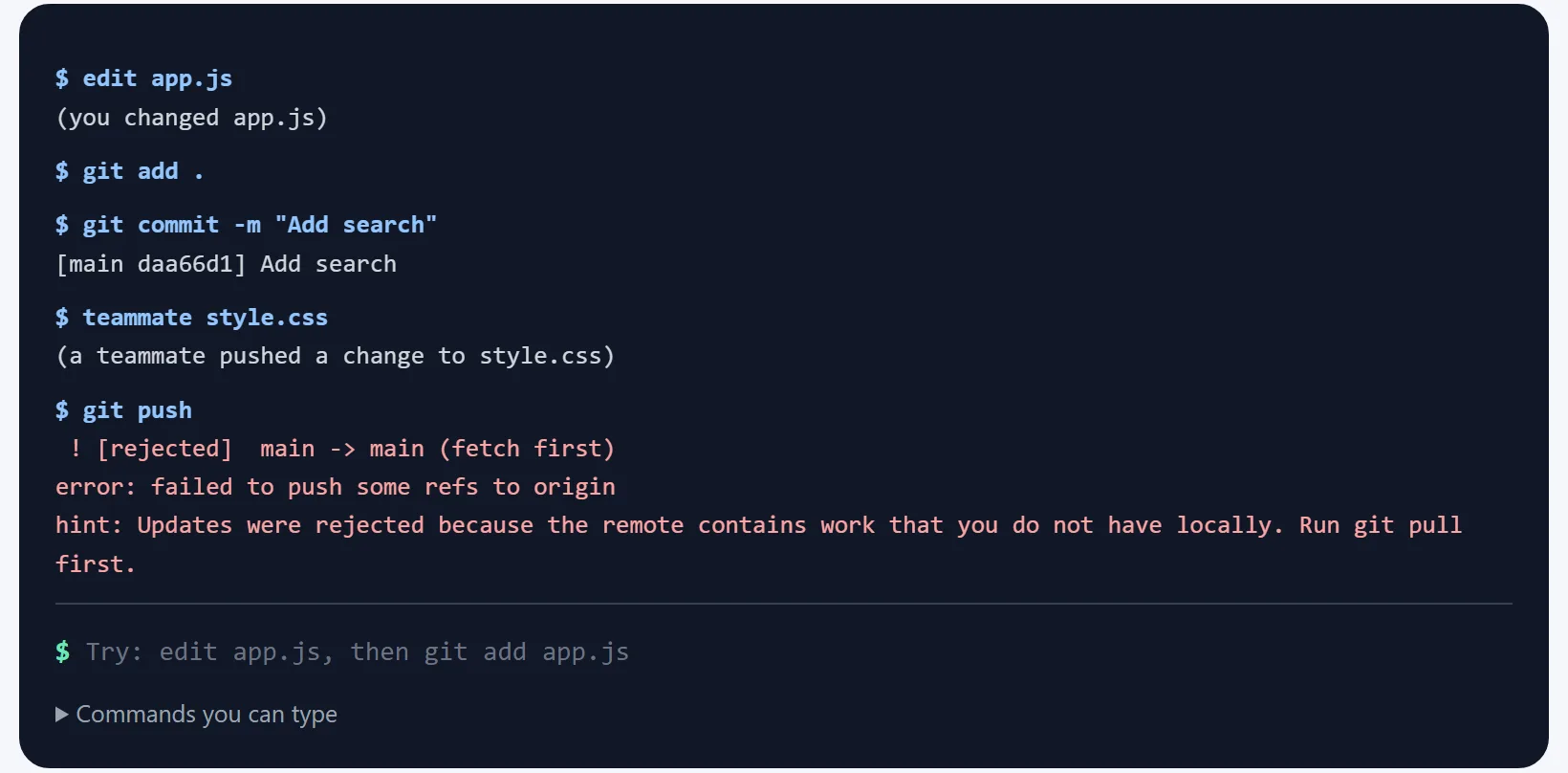
This means someone else pushed before you. Run git pull, fix any conflicts, and push
again. Watch this happen.
Git may also stop a pull and say you need to specify how to reconcile divergent branches. Choosing merge is the simplest option for beginners, and this setting makes it permanent:
git config --global pull.rebase falseDon't use git push --force to get past a rejection, because it erases
your teammate's work. If you've rewritten your own branch and really must force,
git push --force-with-lease refuses when the remote has commits you haven't seen.
How to undo mistakes in Git
Almost everything can be undone. The right command depends on how far the change has got:
| What you want | Command | Your changes |
|---|---|---|
| Throw away edits to a file | git restore FILE | Lost |
| Unstage a file | git restore --staged FILE | Kept |
| Fix the last commit's message | git commit --amend -m "..." | Kept |
| Undo the last commit, stay staged | git reset --soft HEAD~1 | Kept, staged |
| Undo the last commit, unstaged | git reset HEAD~1 | Kept, unstaged |
| Delete the last commit completely | git reset --hard HEAD~1 | Lost |
| Undo a commit already pushed | git revert HEAD | Reversed by a new commit |
HEAD~1 means “one commit before where I am now”. The golden rule is:
use reset and --amend only on commits you haven't pushed. Use
revert on ones you have, because rewriting shared history causes problems for
everyone else.
Deleted a commit and regretted it? Git keeps a private log of where you've been, so you can usually get it back:
git reflog                  # find the commit you were on
git reset --hard HEAD@{1}   # go back to it
The reflog can't help with changes you never committed, which is why git restore and
git reset --hard deserve care. Try each undo safely.
git stash: put work aside
You're halfway through something and need to switch branches for an urgent fix. Stash your work instead of making a half-finished commit:
git stash            # put changes aside, leaving a clean folder
git stash -u         # include new, untracked files too
git stash list       # see what you have saved
git stash pop        # bring the latest stash back
A plain git stash leaves new, untracked files where they are, so use -u if
you want those included too. See a stash in action.
Merge vs rebase
You'll soon hear about git rebase. It's another way to bring in changes: instead of a
merge commit, it replays your commits on top of the other branch, giving a straight history.
| Merge | Rebase | |
|---|---|---|
| History | Shows what really happened | A clean straight line |
| Existing commits | Left alone | Rewritten as new commits |
| Safe on shared branches | Yes | No |
While you're learning, use merge. When you do use rebase, keep to branches only you are working on.
Common mistakes
- Committing straight to
main. Use a branch for each piece of work, so unfinished code stays out of the way. - Committing passwords or API keys. Removing the file later doesn't remove it from
the history. Add
.envto.gitignoreat the start. - Merging in the wrong direction.
git merge xbrings x into your current branch. Check where you are first. - Huge commits. “Lots of changes” is impossible to review or undo. Make small commits that each do one thing.
- Forgetting to push. Commits stay on your computer until you do, and a lost laptop takes them with it.
- Pushing with
--forceon a shared branch. It can delete other people's work. - Using
reset --hardwithout checking. Rungit statusfirst, because uncommitted changes can't be recovered.
Try it in the visualizer
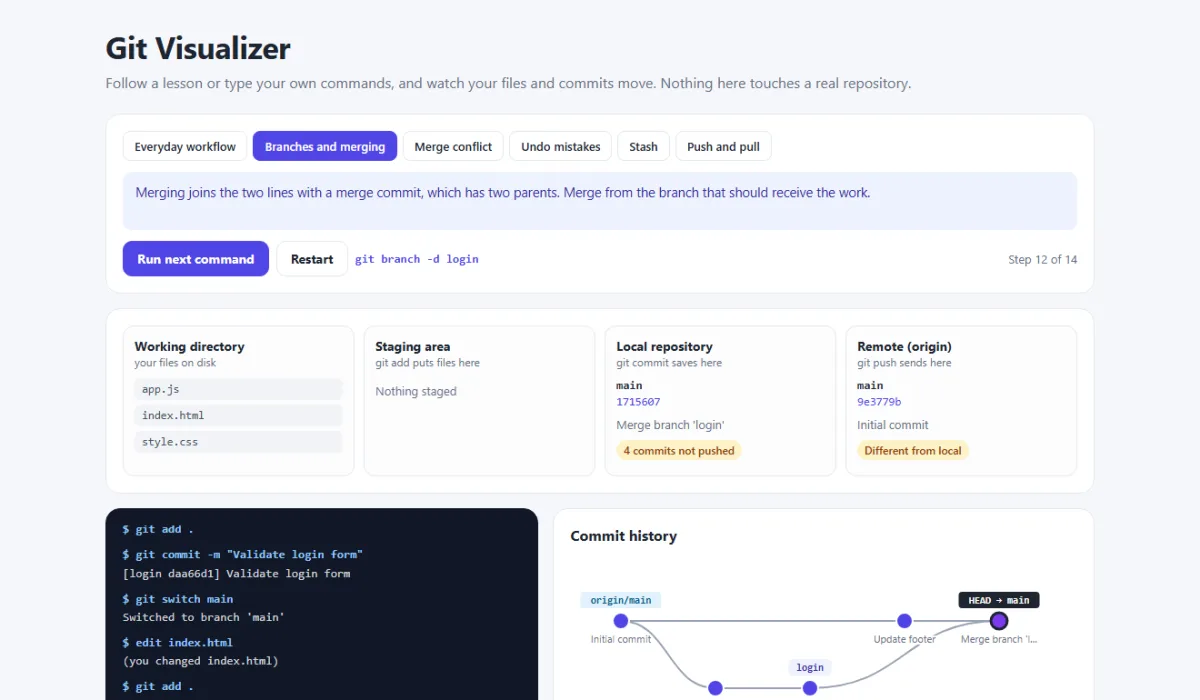
The Git visualizer runs in your browser and can't affect any real project. It has six guided lessons and a terminal for typing your own commands. It's a teaching model, so it covers the common commands and treats each file as a single line. Try these:
- Type
edit app.js, thengit add app.js, thengit commit -m "My first commit". - Make a change, then run
git switchto a branch where that file is different, and read the error. - In the conflict lesson, stop after the merge and run
git merge --abort.
Need help with an error?
Stuck on a Git problem? Share the error output with a teammate, or paste your code into the free code sharing tool. No account needed.
Frequently asked questions
What is the difference between Git and GitHub?
Git is the version control tool that runs on your computer and records the history of your project. GitHub is a website that hosts Git repositories online so people can share them and work together. GitLab and Bitbucket do the same job as GitHub. You can use Git with no website at all.
How do I undo the last commit in Git?
To undo the last commit and keep your changes staged, run git reset --soft HEAD~1. To undo it and discard the changes, run git reset --hard HEAD~1. If you have already pushed the commit, use git revert HEAD, which adds a new commit that reverses it.
What is the difference between git fetch and git pull?
git fetch downloads new commits from the remote but does not change your files or your branch. git pull does a fetch and then merges those commits into your current branch.
What is the staging area in Git?
The staging area is a list of the changes that will go into your next commit. git add puts changes there. It lets you commit part of your work and leave the rest for later.
What is the difference between git merge and git rebase?
git merge joins two branches with a merge commit and keeps the history as it happened. git rebase replays your commits on top of another branch, which gives a straight history but rewrites those commits. Do not rebase commits that other people already have.
Should I use git switch or git checkout?
Use git switch to change branches and git restore to undo file changes. Both were added in Git 2.23 to split up the many jobs of git checkout. git checkout still works, and you will see it in older tutorials.
How do I fix a merge conflict?
Open each file Git lists, choose the code you want, and delete the lines with <<<<<<<, ======= and >>>>>>>. Then run git add on the file and git commit to finish. To cancel instead, run git merge --abort.
Related articles
How to Share a Config File Safely: A Redaction Checklist for .env, YAML and nginx
Share .env, YAML, JSON and nginx configs for debugging without leaking secrets: what to redact, consistent placeholders, examples, and what to do if a key was exposed.
Read More →
How to Share an Error Log, Stack Trace or Terminal Output So Someone Can Help
How to capture and share logs, stack traces and terminal output properly: copying the full output, saving it to a file, trimming to what matters, removing secrets, and sharing a link with line numbers.
Read More →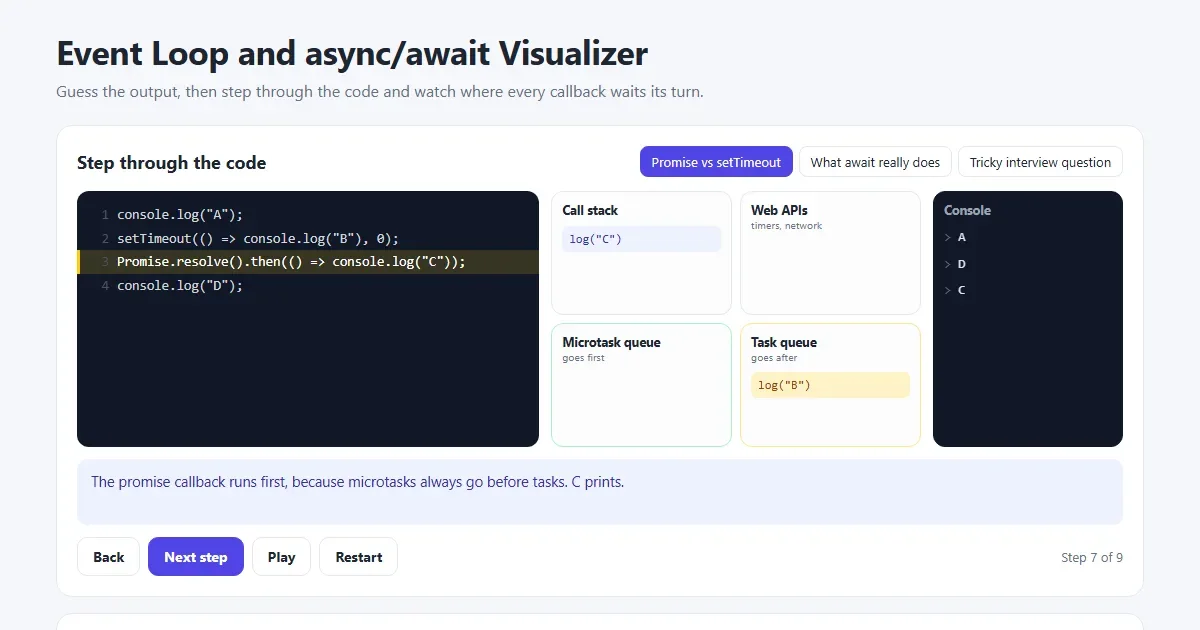
JavaScript Promises and async/await Explained with Examples
Why setTimeout 0 runs last, what await really does, the event loop, fetch, try/catch and Promise.all, with a visualizer that shows every step.
Read More →